Add Zoom Integration
Connecting Zoom lets Feather create a Zoom meeting for each of your online events, keep it in step with the event, and — with a Licensed Zoom account — record the meeting and bring the recording into Feather for your members to watch later.
Prerequisites
Section titled “Prerequisites”-
You must have a Zoom account with
adminrights -
You must be the owner of a Feather Organization or have been given
can manage integrationspermission by the organization owner / admin. -
To record meetings, the Zoom account also needs a Licensed seat with Cloud Recording enabled. A Basic (free) account can create and join meetings from Feather, but cannot record them. See Zoom Cloud Recording settings.
Add Zoom to an Organization Host
Section titled “Add Zoom to an Organization Host”-
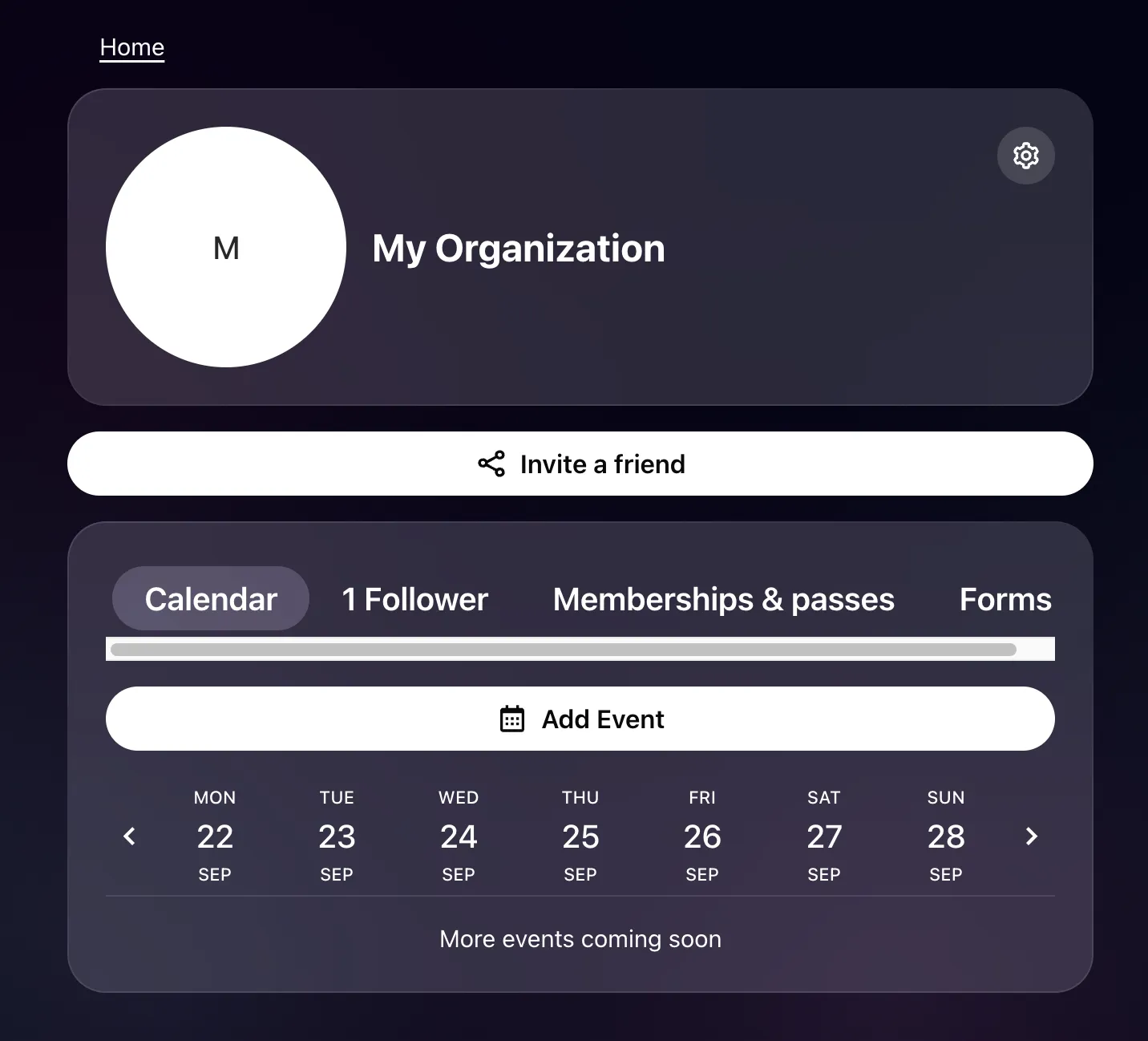
Visit the organization page
-
Click the settings dropdown and edit Host settings.
-
Go to the
Integrationstab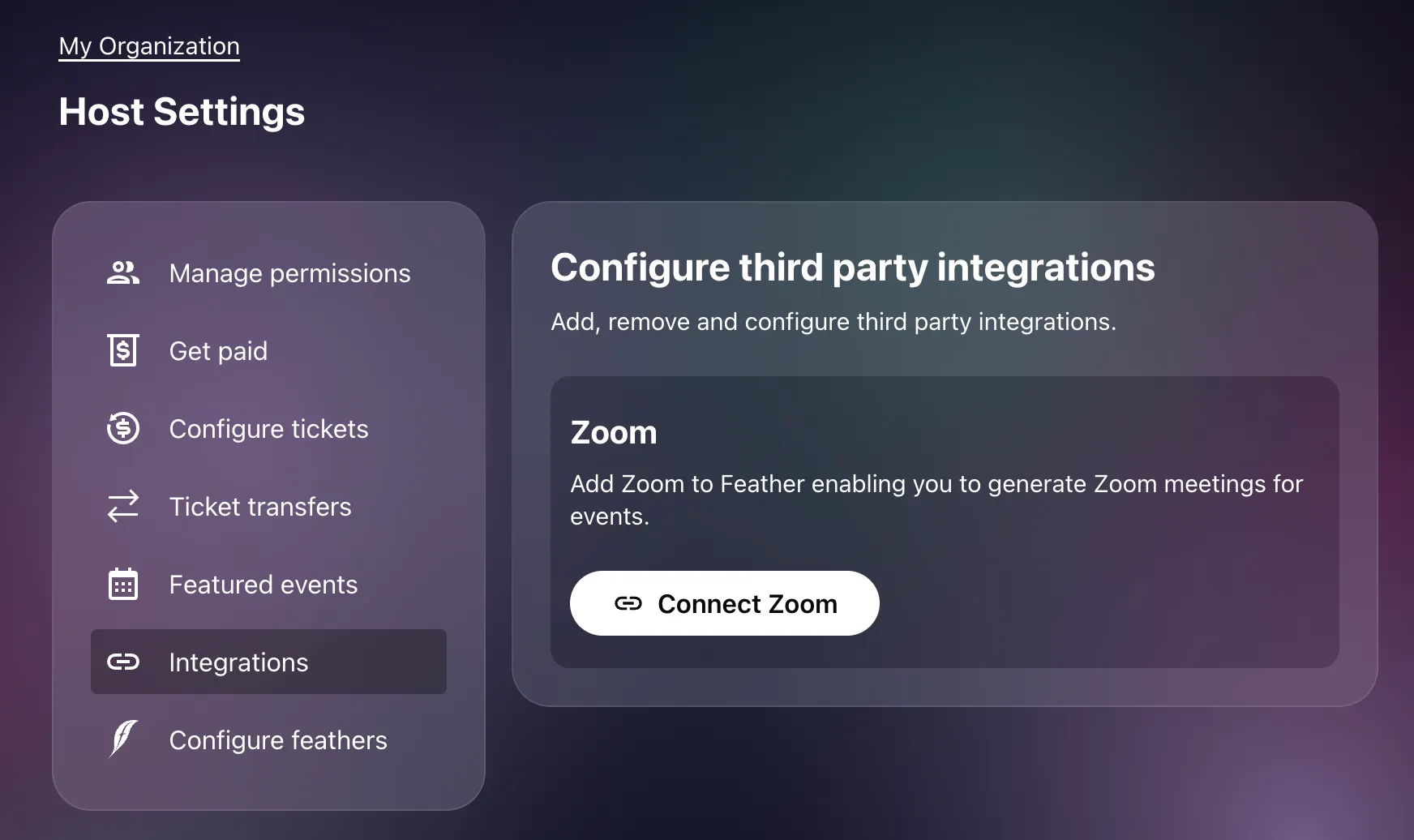
-
Now click the
Connect ZoomorReconnect Zoombutton. This will initiate the connection flow by opening a popup window (in Desktop) or a new tab. -
Login and authorize the Feather Zoom Marketplace App
-
When the authorization is successful, you get redirected back to Feather, which will then complete the link.
-
You can now use Zoom features in Feather
Add Zoom for Personal Hosts
Section titled “Add Zoom for Personal Hosts”Each Feather user can Host events on their personal calendar.
To access the Integration Settings page on the personal host page, you must:
-
Click your user icon in the app toolbar
-
In the dropdown menu, choose:
Profilebutton -
On your profile page, click
Host settingsbutton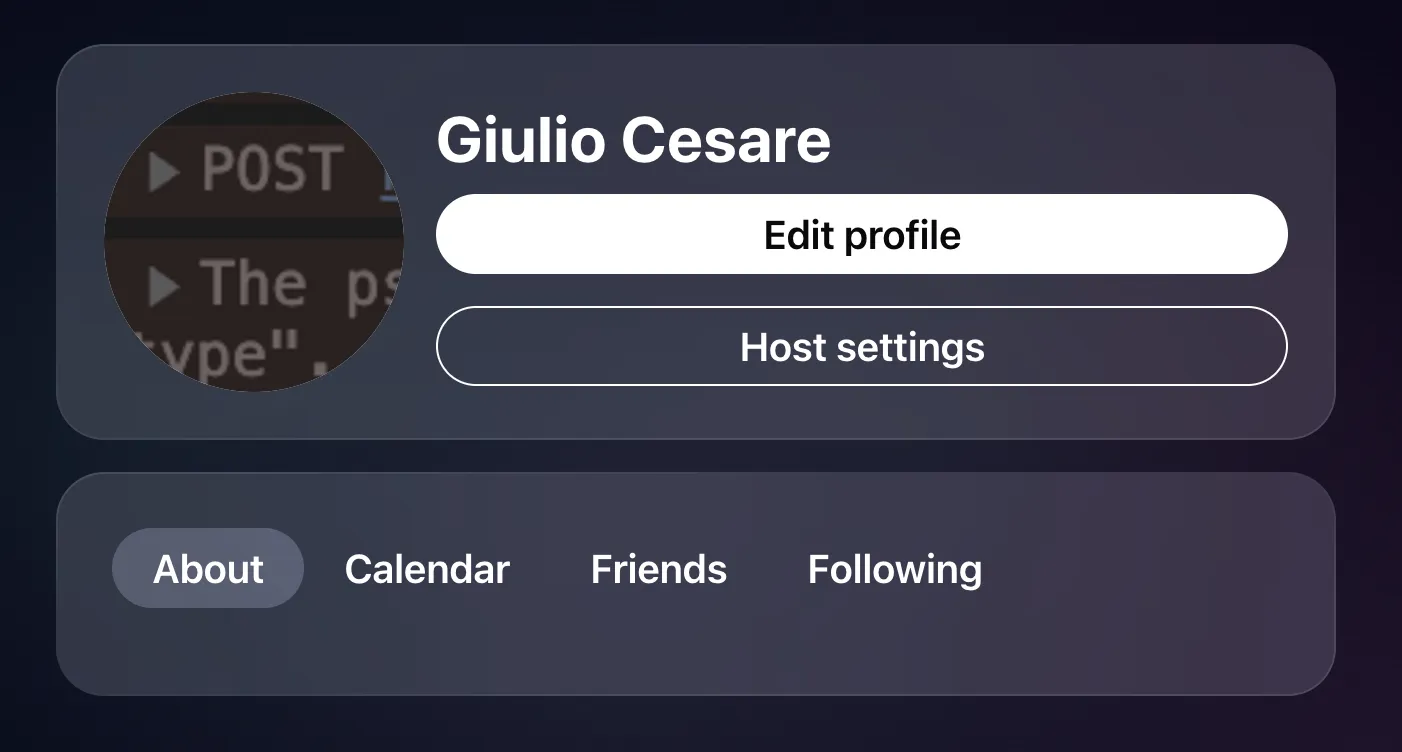
-
Go to the
Integrationstab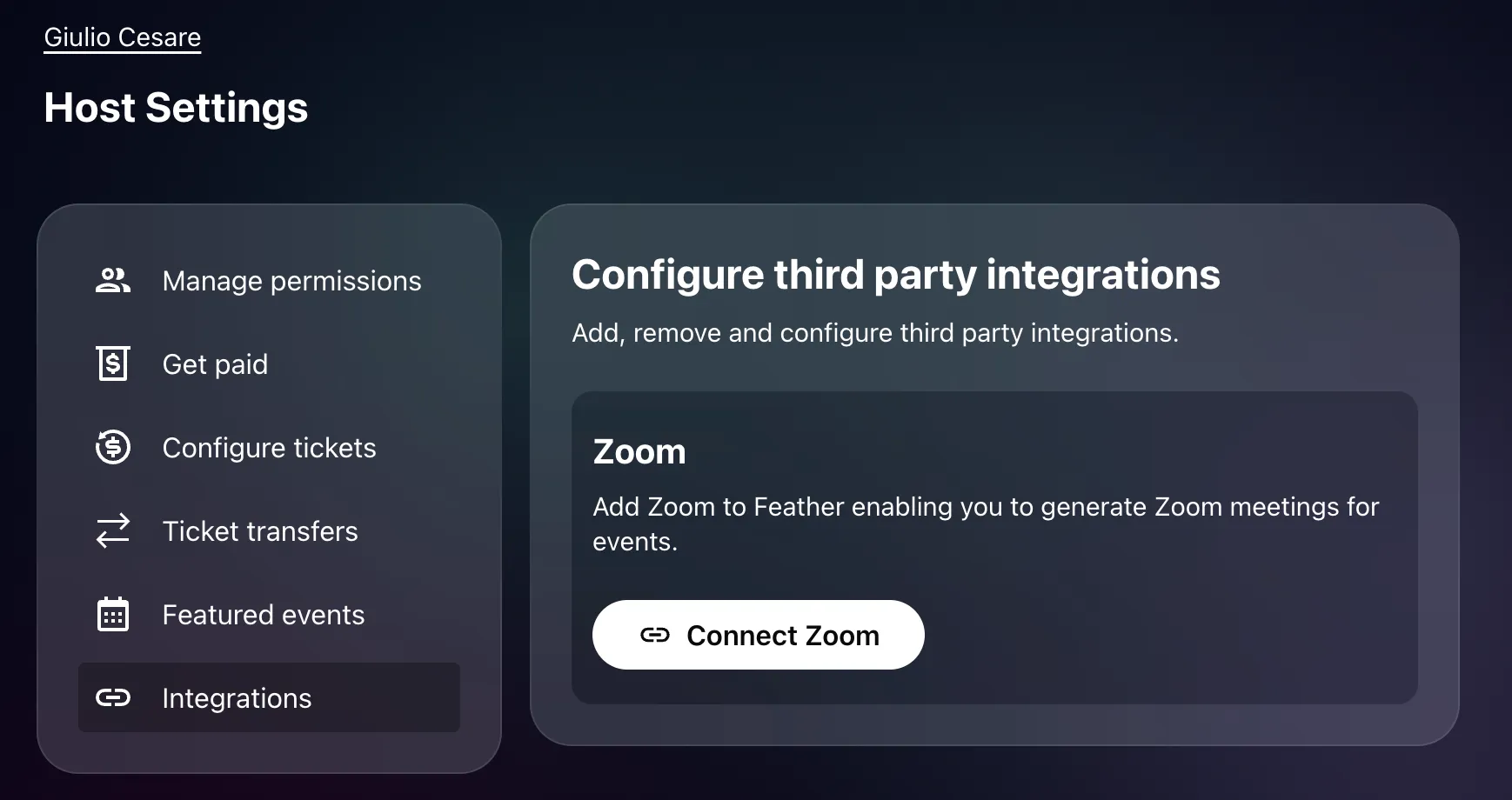
-
Now click the
Connect ZoomorReconnect Zoombutton. This will initiate the connection flow by opening a popup window (in Desktop) or a new tab. -
Login and authorize the Feather Zoom Marketplace App
-
When the authorization is successful, you get redirected back to Feather, which will then complete the link.
-
You can now use Zoom features in Feather
What the panel shows once connected
Section titled “What the panel shows once connected”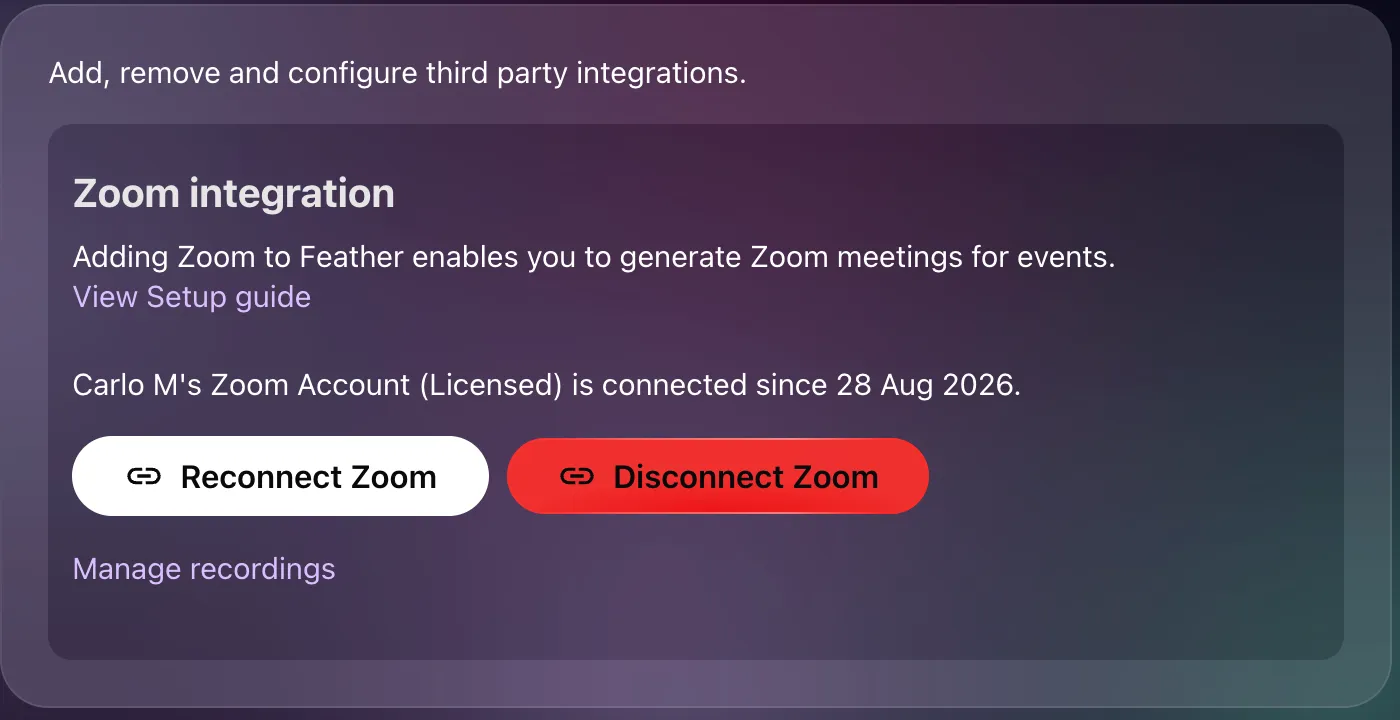
The Zoom integration panel confirms the connection in one line — for example “Jane Doe’s Zoom Account (Licensed) is connected since 12 Aug 2026.” The word in brackets is the account’s Zoom plan as Zoom reports it: Free or Licensed. Only a Licensed account can make Cloud Recordings.
Beneath it you will find:
Reconnect ZoomandDisconnect Zoombuttons.- A Manage recordings link, which opens the Zoom Cloud Recording settings and the list of recordings Feather has archived or is archiving.
If the connection has lapsed the panel says so in red — “The connection to Zoom has expired. Please reconnect your Zoom account.” — and a banner appears across your admin pages. See Reconnect Zoom Integration.
Linking Zoom account to multiple Feather Hosts
Section titled “Linking Zoom account to multiple Feather Hosts”It is possible to link your Zoom account to multiple Feather hosts. Each host has its own recording settings, but the Zoom account’s plan and Cloud Recording capability apply to all of them at once.
Next steps
Section titled “Next steps”- Add a Zoom meeting to an event
- Zoom Cloud Recording settings — if you want meetings recorded
Troubleshooting
Section titled “Troubleshooting”Having issues connecting Zoom? Check out our troubleshooting guide for common problems and solutions.