Add Zoom meeting to Event
Prerequisites
Section titled “Prerequisites”- Your organization owner / admin must have connected zoom to the Feather organization.
- You must be the organization owner or have the permission
Create events and edit event detailsto be able to create an Event with a Zoom meeting.
Create or Update a Feather Event with Zoom Meeting
Section titled “Create or Update a Feather Event with Zoom Meeting”-
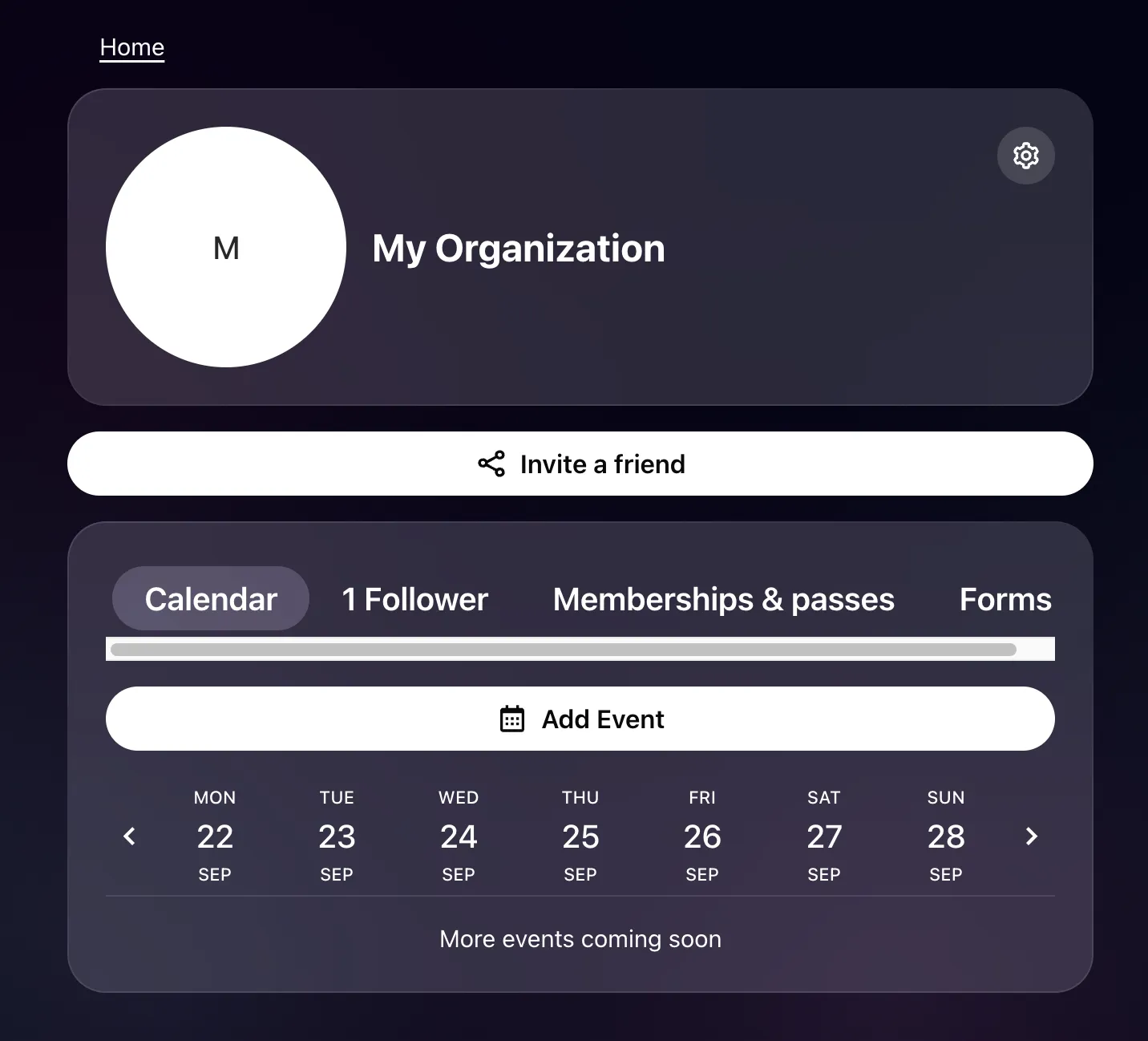
Visit the organization page
-
Click the button
Add eventand enter an event name. -
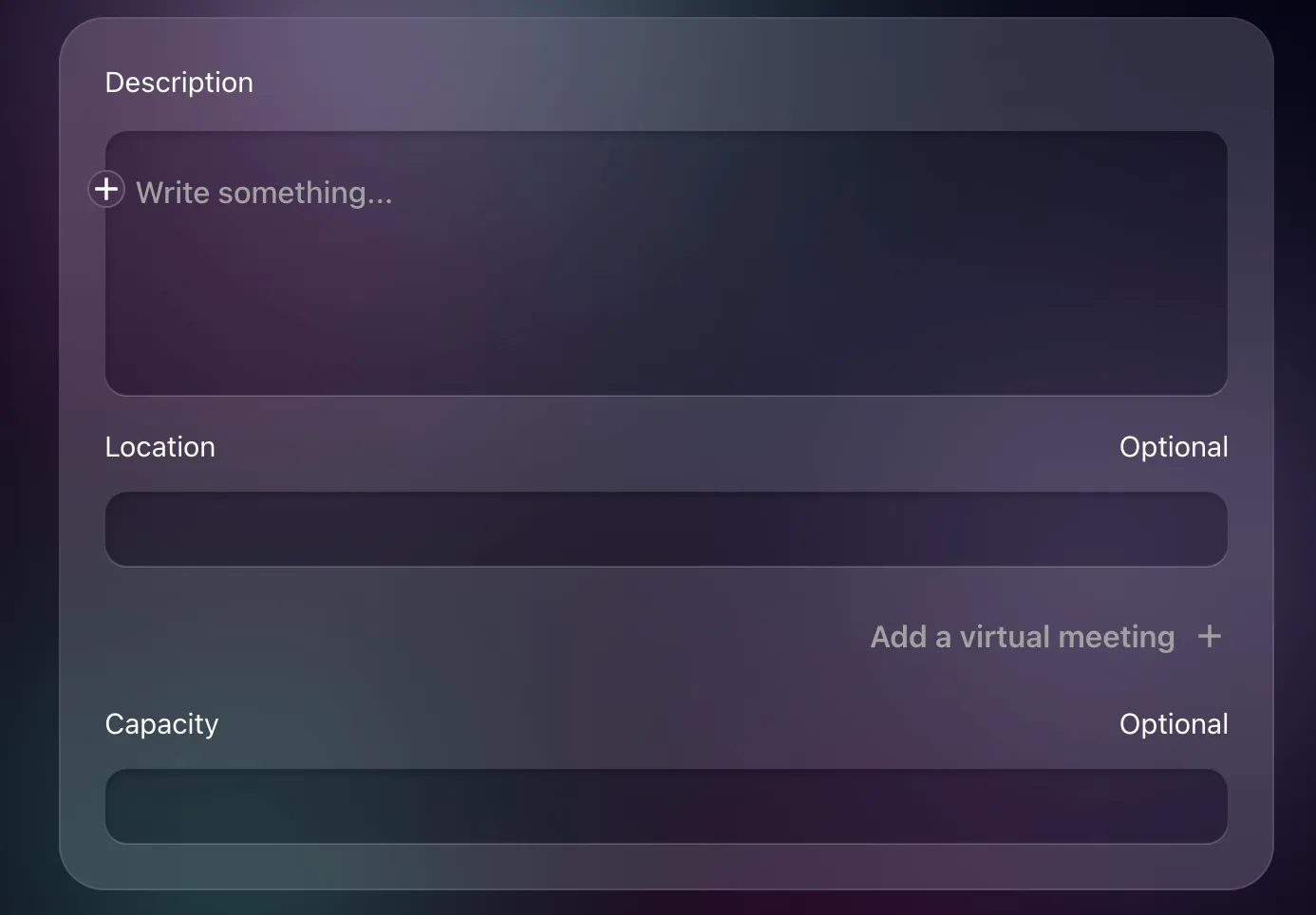
Go to the section with description, location, capacity
-
Now click
Add a virtual meeting+button, which opens the following popup: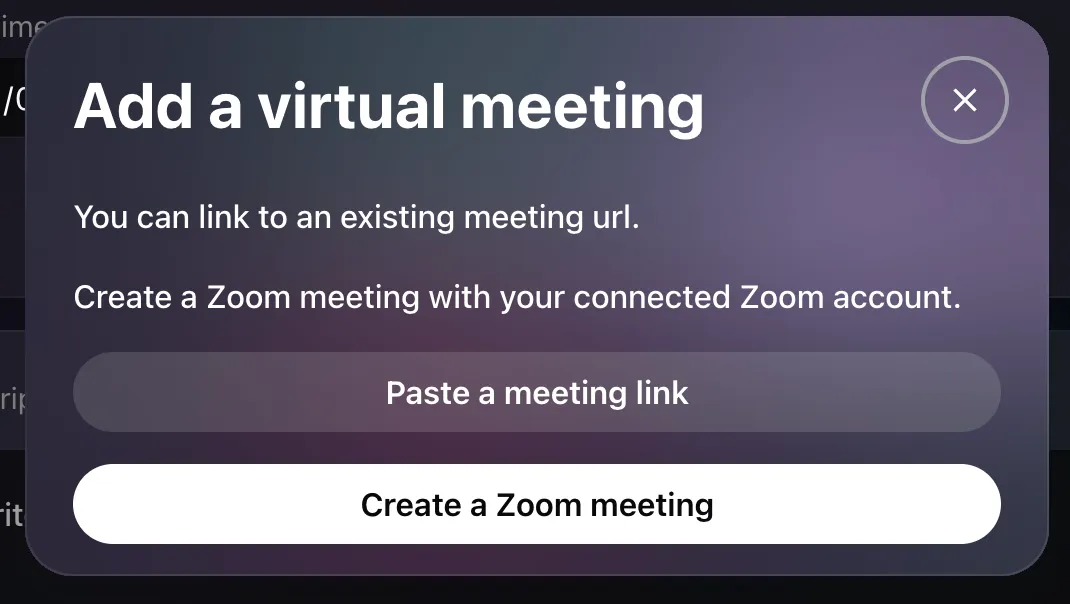
-
Click
Create Zoom meeting, which will close the popup. You will see that the virtual meeting is configured to be generated for this event.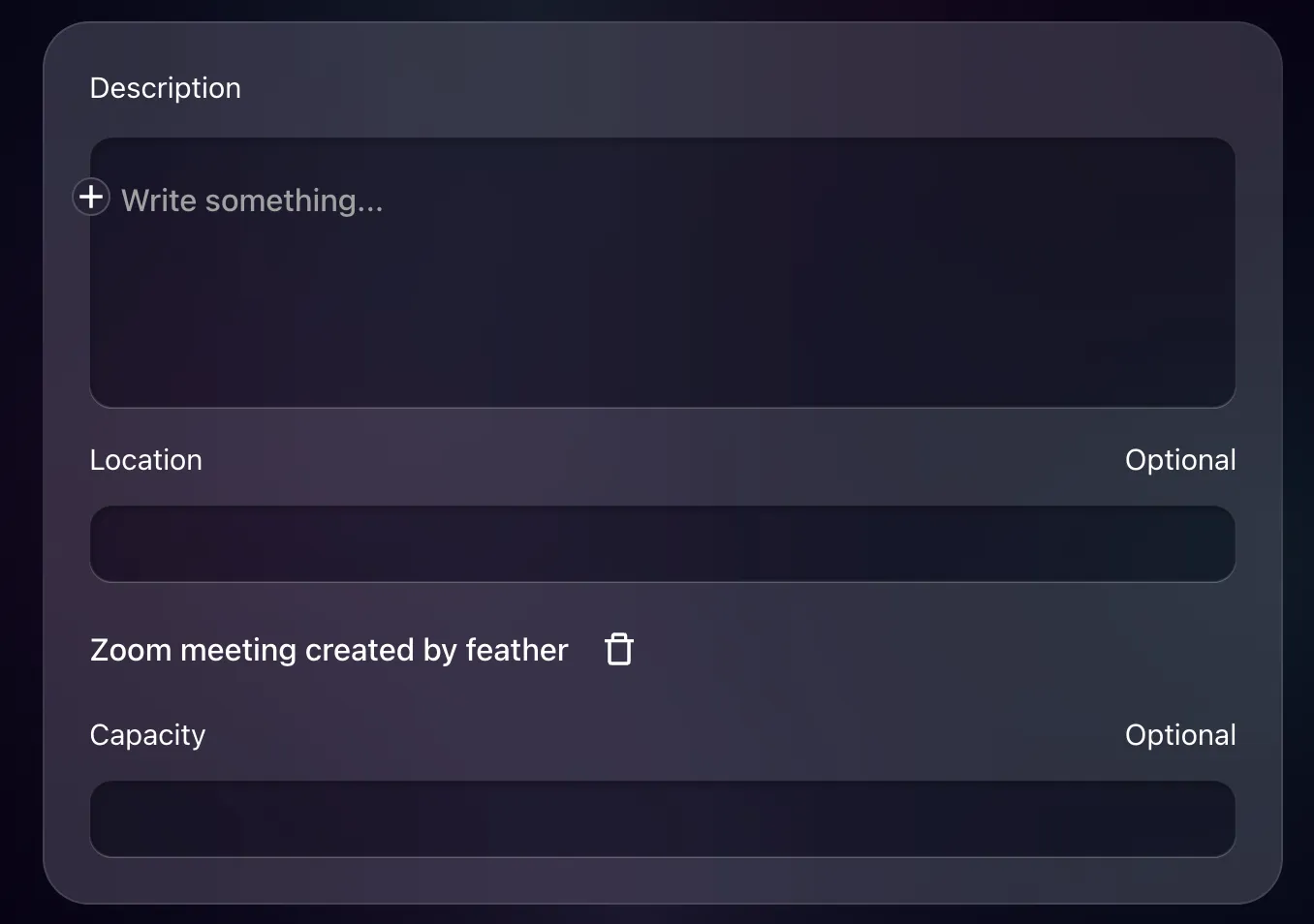
-
Optionally, choose whether the meeting is recorded — see Cloud Recording below.
-
Continue configuring the event and then hit
Save -
The zoom meeting is then created once the Event details page is displayed.
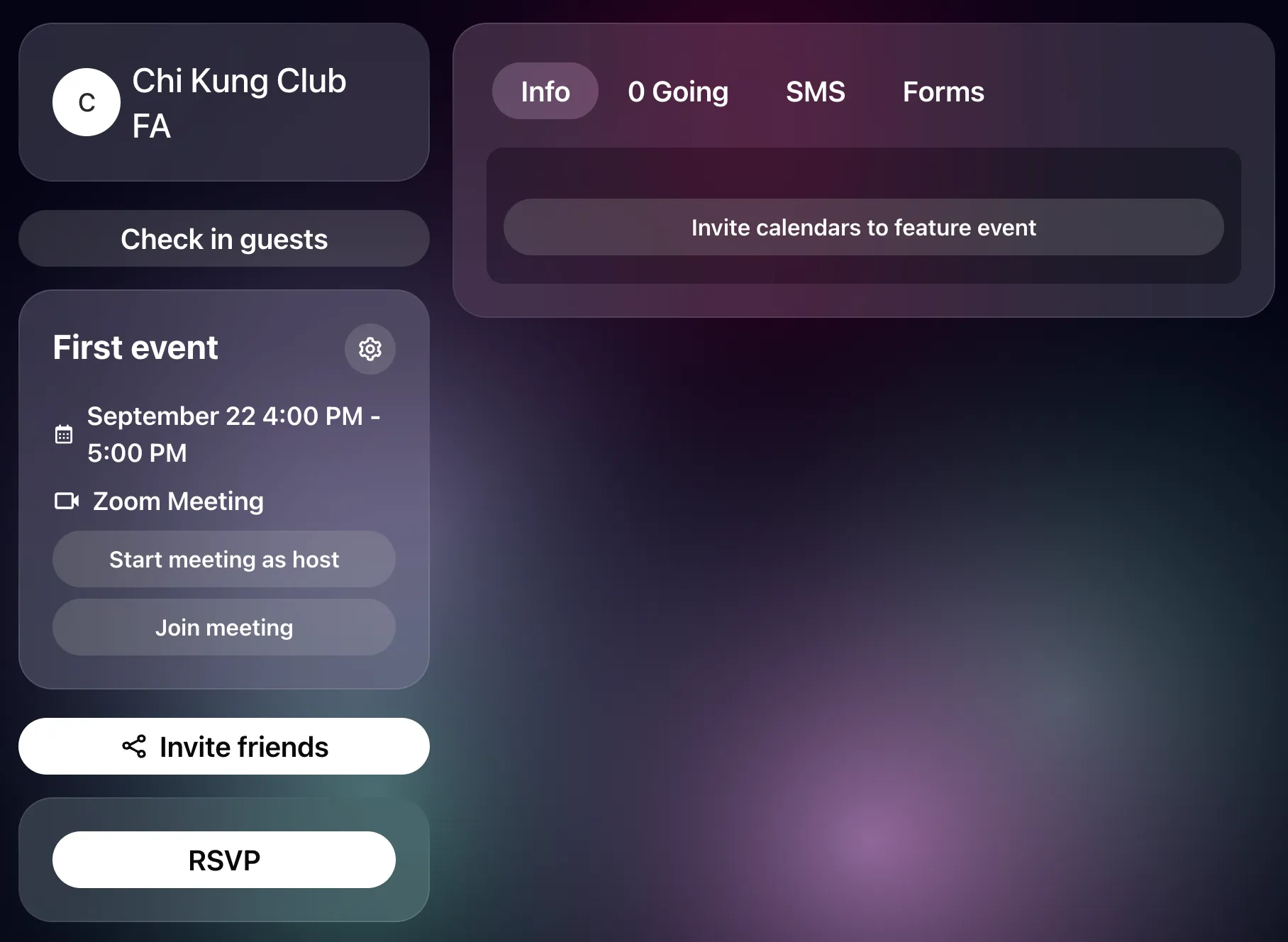
Cloud Recording
Section titled “Cloud Recording”If the connected Zoom account can record, a Cloud Recording control appears beneath the Zoom meeting in the event editor, with three choices:
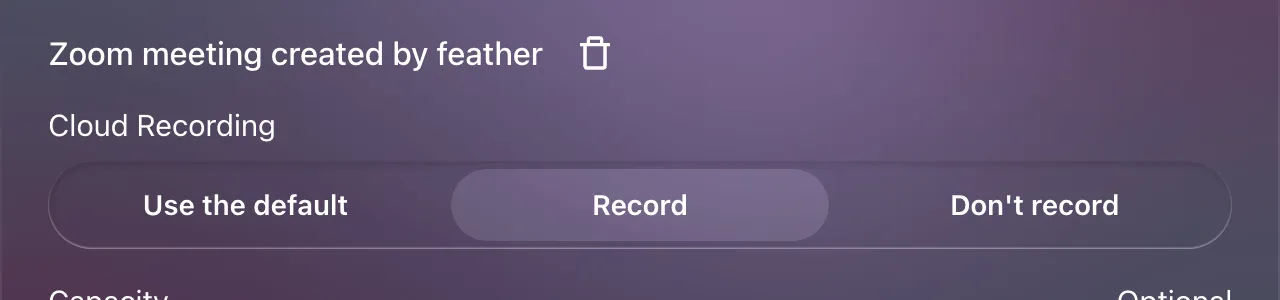
- Use the default — follow the series’ setting if the event is part of a recurring series, otherwise the organization’s Record events by default switch. A note under the control tells you what that currently means, for example “Following your organization: meetings will be recorded to Zoom Cloud.”
- Record — record this event’s meeting regardless of the default.
- Don’t record — never record it.
If the event resolves to Record but the Zoom account cannot make Cloud Recordings, a warning appears under the control explaining why — for instance “This won’t be recorded. Your Zoom account is on a Basic plan, and Cloud Recording needs a Licensed seat.” Feather still saves your choice; it takes effect once the account can record.
What happens to the recording after the meeting is covered in How recordings get into Feather.
Recurring events with Zoom Meetings
Section titled “Recurring events with Zoom Meetings”If your event is set to recur regularly (recurring Event), then the above steps are identical.
The only difference is when Zoom meetings are created (see below), and that the Cloud Recording choice on the series becomes the default for every occurrence — each occurrence can still override it.
When are Zoom meetings created?
Section titled “When are Zoom meetings created?”Zoom meetings are generated only when the page that shows the event is accessed by anyone for the first time.
This means that for recurring events, we only generate the zoom meeting for the first event. Whenever anyone then accesses the event page for any of the future events, the Zoom meeting is generated then. This is to avoid filling your Zoom account with meetings prematurely.
Joining an Event’s Zoom Meeting
Section titled “Joining an Event’s Zoom Meeting”Refer to the guide to joining the Zoom meeting.