The video library
Once your organization has at least one class recording that can be watched, its public page gains a Videos tab. The video library lists every past class that has a recording, newest first, and is where members go to find one they missed.
Recordings reach the library through the Zoom Cloud Recording integration — see How recordings get into Feather. The library itself has nothing to configure: it shows what exists.
When the tab appears
Section titled “When the tab appears”The Videos tab is shown only when the organization has at least one recording that is archived and playable. An organization that has connected Zoom but not recorded anything yet has no tab; the moment a first recording is saved, the tab appears. There is no setting to turn it on or off.
It sits with the other organization tabs — Calendar, Series, Videos, Memberships & passes, and so on — and lives at /o/your-organization/videos.
What members see
Section titled “What members see”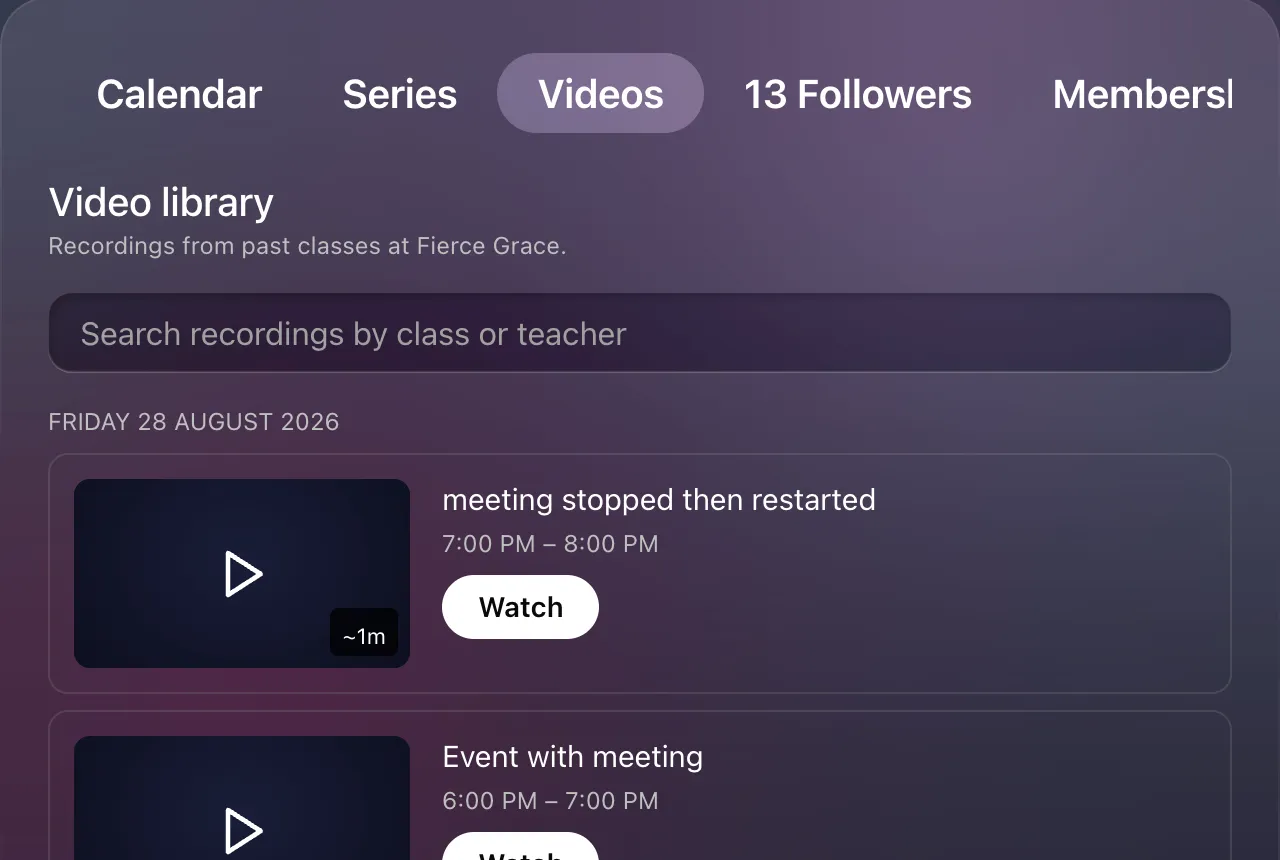
A heading, Video library — Recordings from past classes at Your Organization, a search box, then the recordings grouped by the day the class happened, newest day first.
Each recording is a row:
- A poster — the event’s photo, or a plain dark frame if the event has none — with the recording’s total length in the corner.
- The class name, which links to the event page.
- The class time, in the class’s own timezone, followed by the instructors (each linking to their calendar) and the event’s tags, when it has them.
- A Watch button.
The poster shows a play icon when the member can watch, and a lock when they cannot. Both say Watch — the button is the thing the member wants either way — but the locked one opens the access dialog rather than the player. See Who can watch a recording.
Searching filters the list by class name or instructor. Scrolling to the bottom loads more; the list ends with “That’s every recording.”
If there is nothing to show, the page says “No recordings yet. They appear here once a recorded class has finished.” — though in practice the tab is not drawn until there is something.
Members who are not signed in
Section titled “Members who are not signed in”The library is public. A visitor who is not signed in sees every recording locked. Pressing Watch opens the access dialog with a sign-in step at the top; once they sign in and join the organization, the page refreshes their access — a returning member who already has a covering membership goes straight to the player, and anyone else is shown the memberships on sale.
What the library does not include
Section titled “What the library does not include”- Recordings still waiting for approval or still archiving — only a recording that finished archiving is listed.
- Recordings the organization has deleted. Deleting removes them from the library immediately.
- Recordings of cancelled or deleted events.
- Anything from a different organization, even one connected to the same Zoom account.
To see recordings in every state, use the admin Video library.
Related
Section titled “Related”- Admin Video library
- Who can watch a recording
- How do I watch a class recording? — the guest-facing guide