Reviewing recordings
A recording that shows Needs admin approval is still in your Zoom account. Nothing has been copied to Feather. Reviewing it means deciding whether to bring it in — Save to Feather — or leave it where it is — Discard.
When a recording needs review
Section titled “When a recording needs review”- In Manual mode (the default), every recording waits for approval.
- In Automatic mode, only recordings Feather could not confidently match to an event wait — the ones whose times were close to the event but not close enough, or that do not line up with the event at all. Confident matches are archived without asking.
See Zoom Cloud Recording settings to change the mode.
Prerequisites
Section titled “Prerequisites”To approve, discard, cancel or re-run a recording you must be the organization owner or have the can manage integrations permission. People with Create events and edit event details can see the recordings and their status but cannot act on them.
The organization must also have ticked Keep our Zoom recordings in Feather in its Zoom Cloud Recording settings. Without that consent no recording is held for review in the first place.
The review email
Section titled “The review email”When a recording is held, Feather emails everyone who can manage your organization’s integrations. The email is titled “A Zoom Cloud Recording is waiting for your review”. It says when the recording finished, which event it looks like it belongs to (or that it could not be matched), reminds you that nothing has been copied yet, and links straight to the recordings page.
One email is sent per meeting, not per file, and not again on later reminders. In Manual mode you can switch the email off; in Automatic mode it is always sent, because the recordings it covers are the ones nothing else would tell you about.
Where to review
Section titled “Where to review”There are three places that show a held recording, and you can decide from any of them:
- The organization’s recordings page — Host settings →
Integrations→Manage recordings. This lists every recording in the organization. Press the Needs admin approval filter pill to see only the ones waiting. - The event’s own Recording page — from the event’s manage menu. Its
Manage filestab shows a count of items needing attention, for example Manage files (1). - The admin Video library — under
Calendarsin the organization admin menu. A class with a held recording carries a Needs admin approval pill; opening it takes you to the event’s Recording page.
Reading the card
Section titled “Reading the card”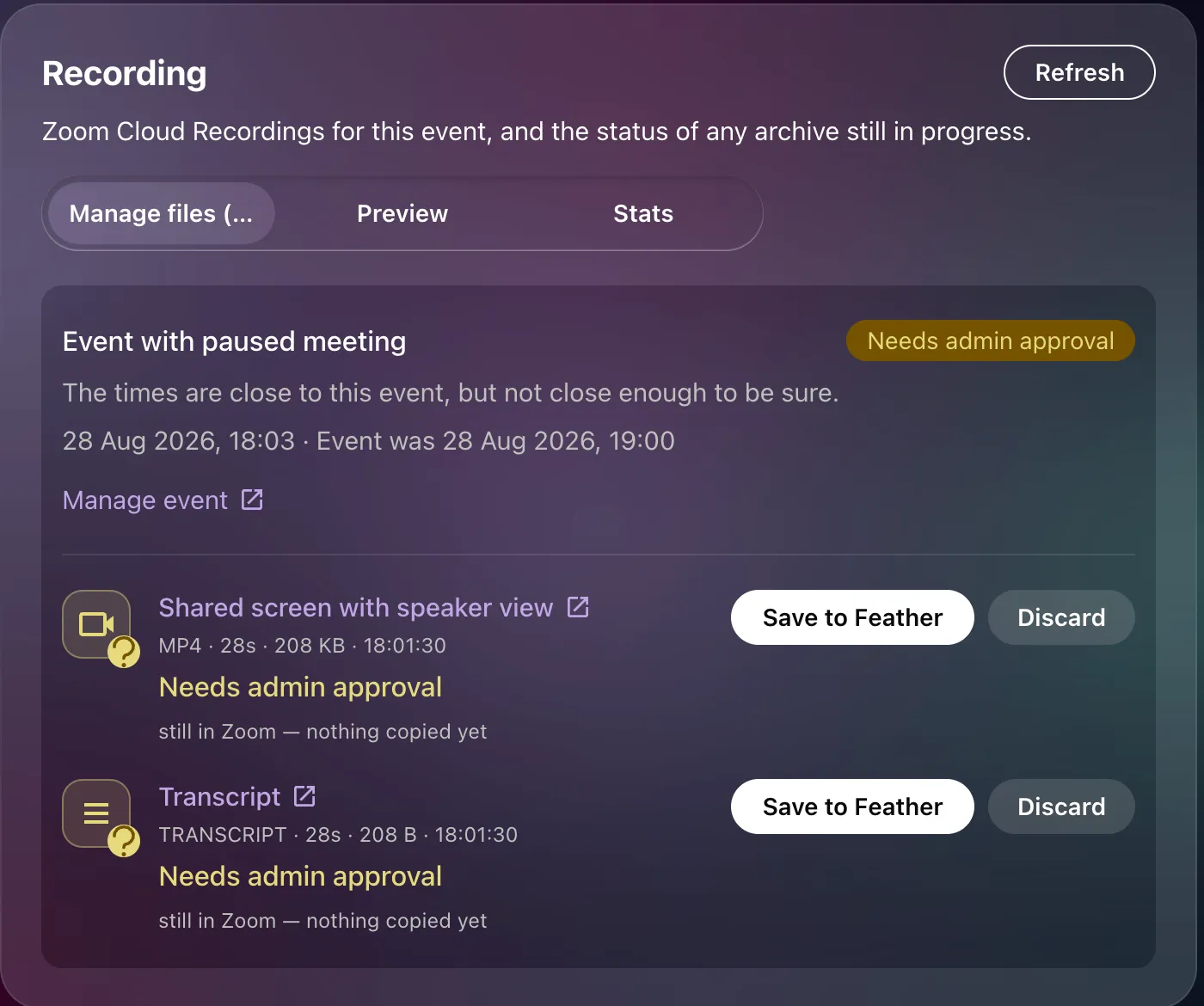
Recordings are grouped by event, one card per event. A held recording’s card shows:
- The event name, or Unmatched recording if Feather could not tie it to any event.
- A Needs admin approval pill.
- For an uncertain match, a line explaining why: “The times are close to this event, but not close enough to be sure.” or “This does not line up with the event the meeting was created for.” A confident match has no line — the pill is enough.
- When the recording arrived, and when the event was.
- A Manage event link to the event’s Recording page.
- One row per file — video, audio, transcript — with its type, length, size and the time it started. Each row reads Needs admin approval · still in Zoom — nothing copied yet.
The file name on each row is a link to Zoom’s own player, so you can watch the recording in Zoom before deciding what to do with it.
Approving
Section titled “Approving”-
Find the card and check the file rows. If you are not sure it is the right recording, open it in Zoom from the row.
-
Press
Save to Featheron the row. -
Feather queues the copy. The row moves through Queued (waiting for a worker), then Archiving with a progress bar showing how much has transferred, then Saved on 29 Aug 06:00.
-
Once every file of the recording is saved, the event shows Recording available and the class appears in the video library.
Save to Feather files the recording under the event named on the card. For a recording whose match was uncertain, that is the event the meeting was originally created for — make sure it is the right one before pressing Save.
Discarding
Section titled “Discarding”Press Discard to leave the recording where it is. The row becomes Discarded · never downloaded. This is final: a discarded recording cannot be re-run from Feather. The recording itself is untouched in Zoom, so if you change your mind you can still download it from Zoom by hand.
Use Discard for recordings you never wanted in Feather — a host’s unrelated call on a reused link, a test, a recording of an event that was cancelled.
While a recording is archiving
Section titled “While a recording is archiving”- Cancel stops a transfer that is running. The row becomes Cancelled, showing who cancelled it and when. A cancelled transfer can be re-run.
- Re-run restarts archiving for a recording that Failed, was Cancelled, or Stopped responding.
Two failures cannot be re-run, and the button does not appear for them:
- Zoom no longer has the recording — Zoom’s retention removed it before the copy finished. The row’s message says so.
- Feather was never given permission to read it — the Zoom connection is missing the recording scope. Reconnect Zoom and the next recording will work.
Act before Zoom’s retention runs out
Section titled “Act before Zoom’s retention runs out”A held recording lives in your Zoom account under Zoom’s rules. If your Zoom account is set to delete cloud recordings after a number of days, that clock is running while the recording waits for you. Once Zoom removes it, Save to Feather fails with Failed · Zoom no longer has the recording, and there is nothing Feather can do.
If you find yourself approving everything anyway, switch the organization to Automatic so confident matches never wait.