How do I watch a class recording?
Some hosts record their online classes and make the recording available afterwards on Feather. If a class you attended was recorded, you can watch it back.
Where to find it
Section titled “Where to find it”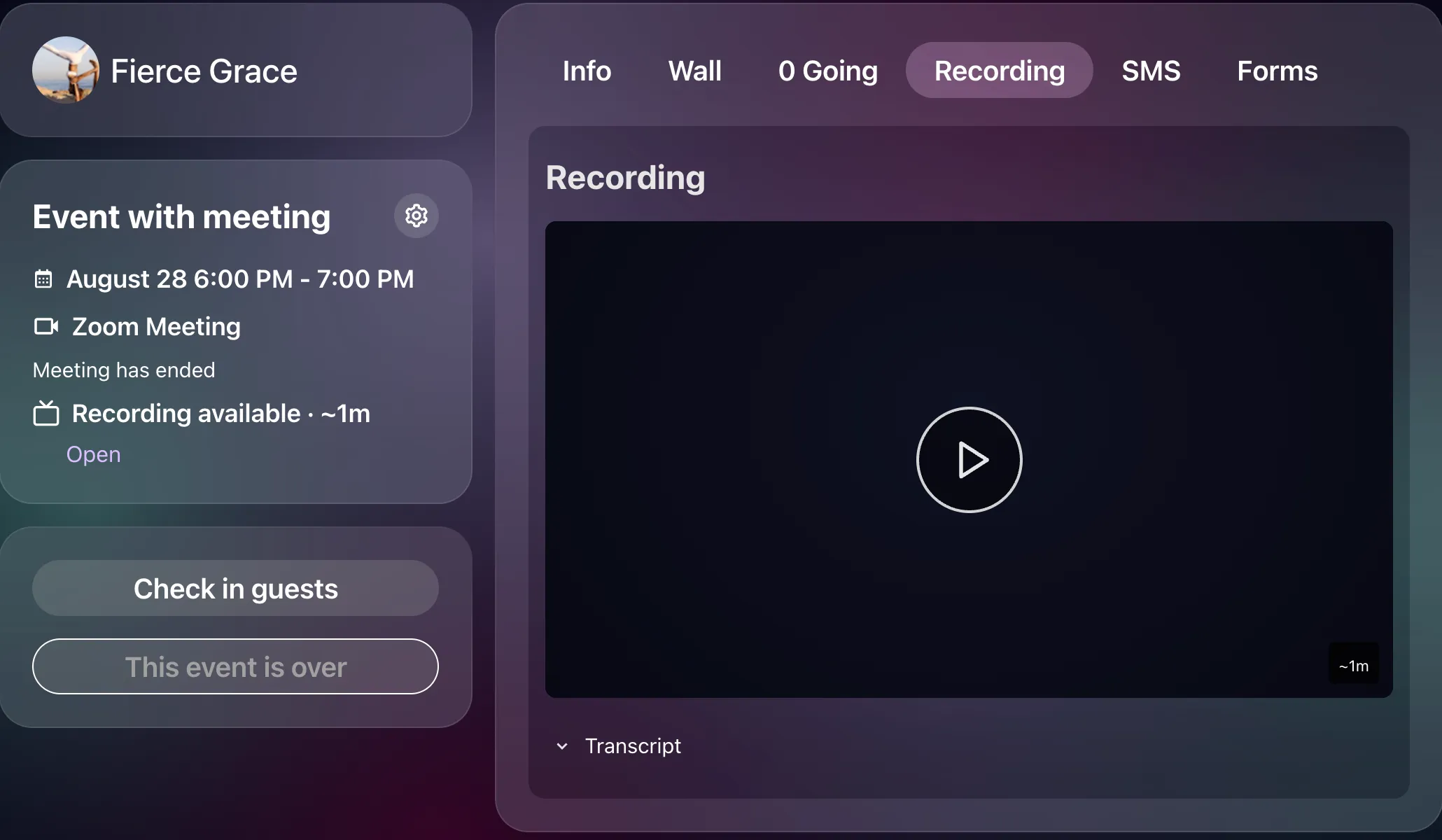
On the event page. Open the event and look for the Recording tab. It appears once the class has ended and a recording is expected. If the recording is still being prepared, the tab says Recording coming soon; once it is ready, it shows a player.
On the host’s page. Hosts that have recordings get a Videos tab on their page, listing every recorded class newest first. You can search it by class name or teacher. Press Watch on a class to open its recording.
Who can watch
Section titled “Who can watch”You can watch a class recording if:
- you had a ticket or RSVP for that class — including a free RSVP or a guest pass someone shared with you, or
- you hold an active subscription membership with the host that covers the class, or
- you teach or help run the class.
You need to be signed in. Recordings are never shared publicly.
Why is a recording locked?
Section titled “Why is a recording locked?”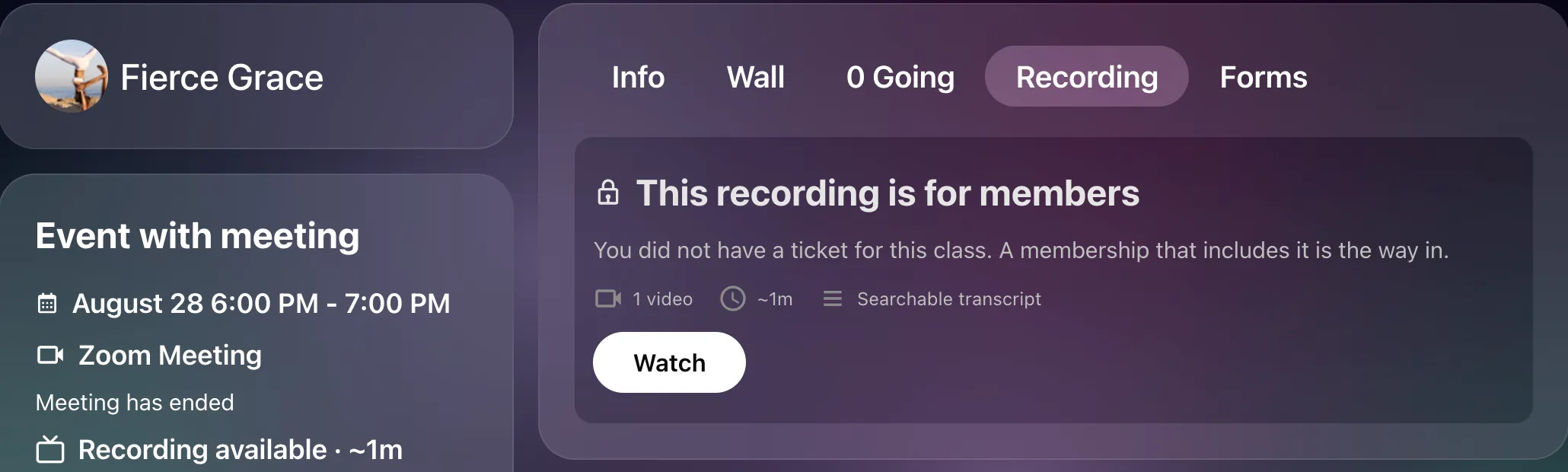
If you see a lock and the message “This recording is for members”, you were not on the guest list for that class and do not currently hold a membership that covers it. Beneath the message you can see what is in the recording — how many videos, how long, and whether there is a transcript — so you know what you would be getting.
Press Watch to see the memberships on sale that would unlock it. If you used to have one of them and it has lapsed, its button says Renew. If the host does not sell a membership that covers this class, the recording is only available to the people who attended.
Class packs do not unlock recordings, even if the pack would have covered the live class. Only subscription memberships do.
Watching
Section titled “Watching”- The recording opens with a play button over the event’s photo. Press it to start.
- Use the 10-second skip buttons under the player to move back and forth.
- If the host stopped and restarted recording during the class, you will see Part 1, Part 2 and so on beneath the player. Pick a part to play it.
- If the recording has a transcript, it opens beside the video. You can search it, and clicking any paragraph jumps the video to that moment.
If the video will not play, reload the page and press play again. If it still fails, contact the host and tell them roughly when you tried.
Can I download a recording?
Section titled “Can I download a recording?”No. Recordings are watched on Feather and cannot be downloaded or shared by link.
Can a recording disappear?
Section titled “Can a recording disappear?”Yes. The host controls their recordings and can delete them at any time, after which they leave the library and the event page immediately. If you appear in a recording and would like it removed, contact the host, or email contact@feather.rsvp and we will pass your request on.