Zoom Cloud Recording settings
Feather can ask Zoom to record the meetings it creates for your events, then bring those Cloud Recordings into Feather so your members can watch them later. This page covers the settings that control it. For what happens after a recording arrives, see How recordings get into Feather.
Prerequisites
Section titled “Prerequisites”- Zoom must be connected to your Feather organization.
- The connected Zoom account needs a Licensed seat. Zoom Cloud Recording is not available on Basic (free) accounts.
- Cloud Recording must be switched on in your Zoom account settings, and not locked off by your Zoom account owner. You can check it at zoom.us/account/setting → Recording.
- To change these settings you must be the organization owner or have the
can manage integrationspermission. Anyone withCreate events and edit event detailscan see the panel but not change it. - Someone with that permission must tick Keep our Zoom recordings in Feather — your consent for Feather to store the recordings. Until it is ticked, Record events by default and the per-event controls are locked, and any recording Zoom sends is not stored. See Consent to keep recordings in Feather.
Where to find the settings
Section titled “Where to find the settings”-
Open your Host settings and go to the
Integrationstab. -
Once Zoom is connected, the Zoom integration panel shows a
Manage recordingslink. Click it. -
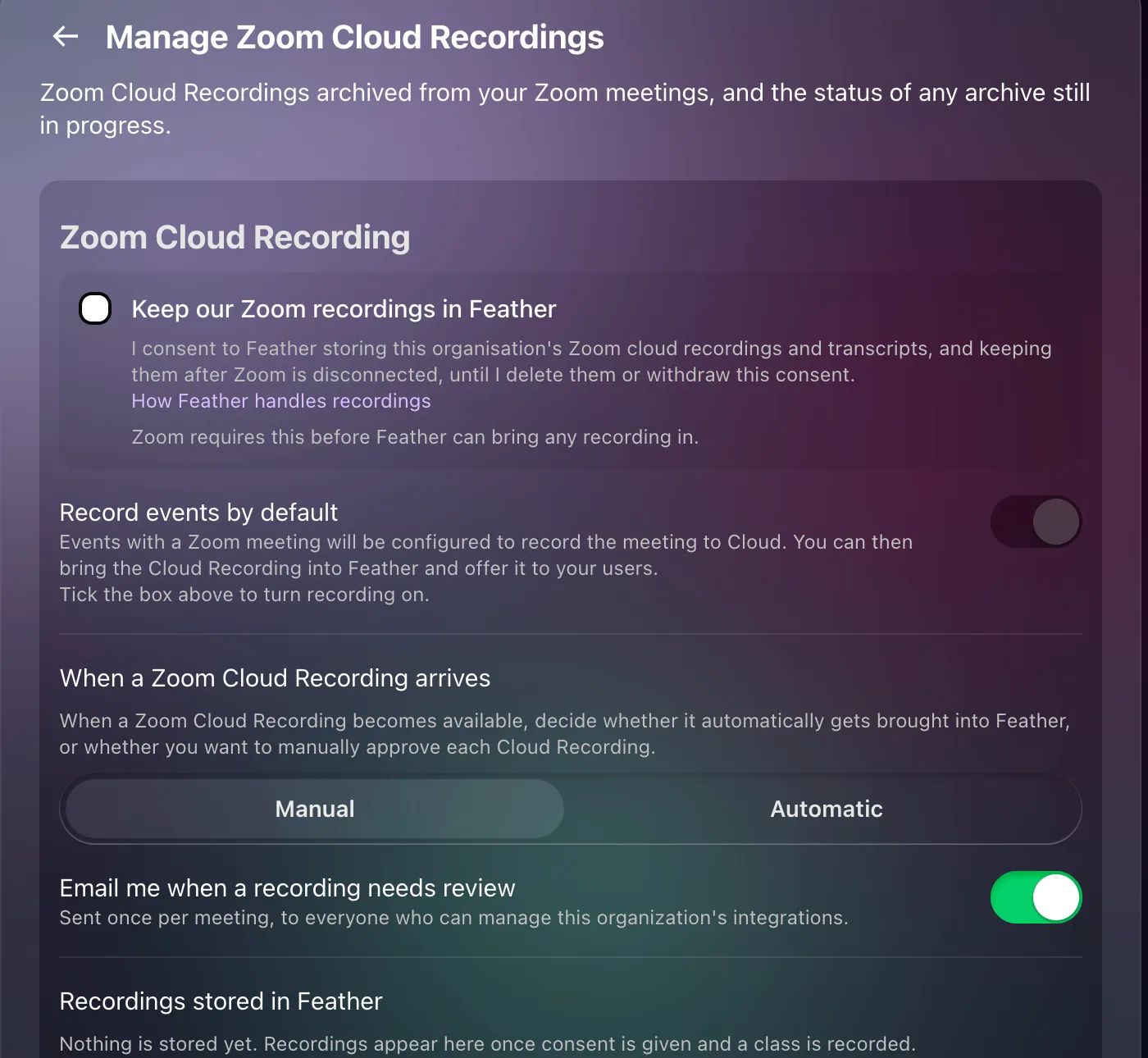
The Manage Zoom Cloud Recordings page opens. The settings panel, titled Zoom Cloud Recording, sits at the top; the archive jobs list is below it.
Record events by default
Section titled “Record events by default”When this switch is on, every event that gets a Zoom meeting is created with the meeting set to record to Zoom Cloud. When the meeting ends, Zoom processes the recording and tells Feather about it.
The switch is disabled, with the note “Tick the box above to turn recording on.”, until consent has been given.
You can override this for an individual event or a whole series — see Per-event and per-series recording below.
Applying the change to events that are already scheduled
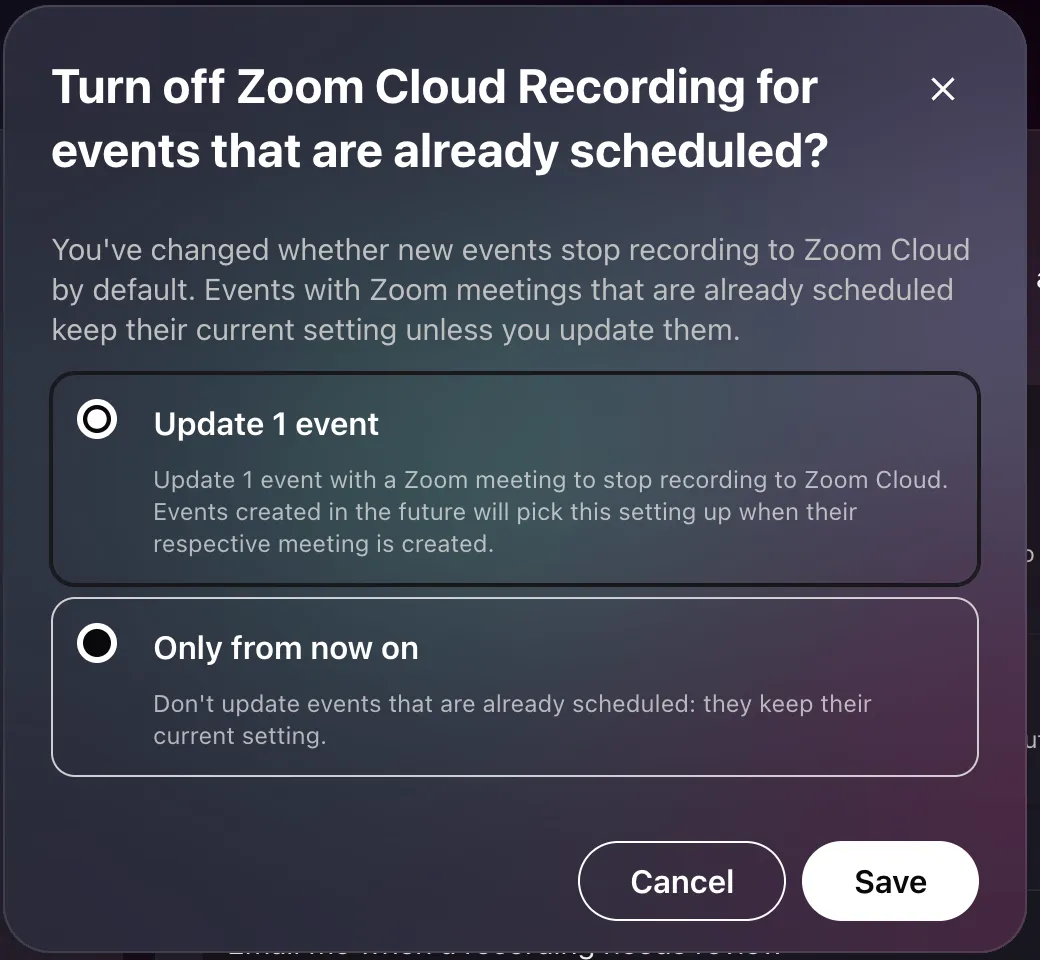
Section titled “Applying the change to events that are already scheduled”Zoom meetings are only created when an event page is first visited, and a meeting carries its recording setting from that moment. So changing the default raises a question about meetings that already exist. If any upcoming events already have a Zoom meeting, Feather asks:
Enable Zoom Cloud Recording for events that are already scheduled?
You’ve changed whether new events start a Zoom Cloud Recording by default. Events with Zoom meetings that are already scheduled keep their current setting unless you update them.
You get two choices:
- Update N events — updates every upcoming event that has a Zoom meeting and follows the default. Events created in the future pick the setting up when their meeting is created.
- Only from now on — leaves scheduled events exactly as they are.
Events or series that carry their own recording setting are never touched either way. The prompt tells you how many are protected, for example: “2 events and 1 series have their own setting and will not be changed.”
Because updating many meetings takes time, the confirmation reads “Started on N events.” rather than “Applied”: the updates are queued and reach Zoom a few seconds apart. If some could not be queued, Feather says so and retries them.
Per-event and per-series recording
Section titled “Per-event and per-series recording”Recording is decided in three layers, and the most specific one wins:
- The event’s own setting, if it has one
- Otherwise the series’ setting, if the event belongs to a recurring series that has one
- Otherwise the organization’s Record events by default switch
To set it on an event or a series, open the event editor and find the Cloud Recording control beneath the Zoom meeting:
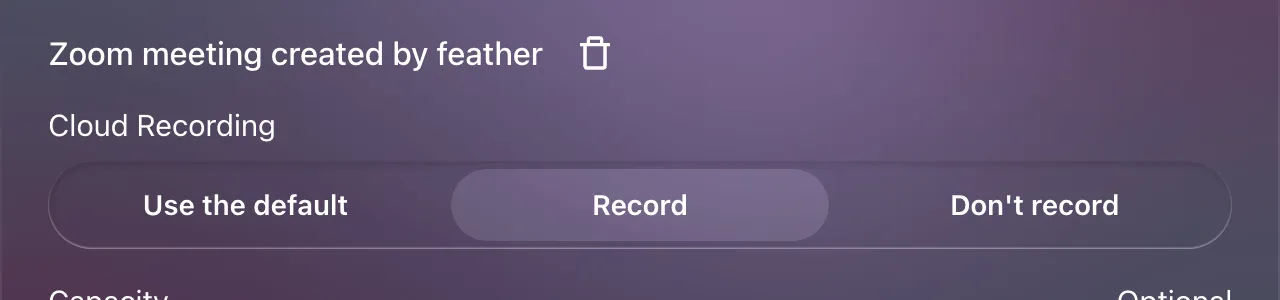
- Use the default — inherit from the series or the organization. While this is selected, a note tells you what that currently means and where it comes from, for example “Following this series: meetings will be recorded to Zoom Cloud.” or “Following your organization: meetings won’t be recorded.”
- Record — always record this event’s meeting, whatever the default says.
- Don’t record — never record it.
When you change the setting on a series, Feather asks “Update this series’ scheduled events too?” after saving. The series itself is already saved at that point; the prompt only decides whether the occurrences that already have a meeting are updated as well. Occurrences that carry their own setting keep it.
Consent to keep recordings in Feather
Section titled “Consent to keep recordings in Feather”Before Feather can bring any recording in, someone who manages your organization’s integrations ticks Keep our Zoom recordings in Feather. Zoom requires this: it is your written consent for Feather to store your cloud recordings and transcripts, and to keep them after you disconnect Zoom, until you delete them or withdraw the consent. The panel shows who gave it and when.
Until it is ticked, Record events by default and the per-event recording controls are locked.
Deleting recordings
Section titled “Deleting recordings”At the bottom of the panel, Recordings stored in Feather shows how many recordings you hold. Delete all recordings removes every recording and transcript from Feather and from your video library; your consent and settings are kept, so new classes keep being recorded. Unticking the consent box withdraws it: this also deletes every recording, turns Record events by default off, and stops future meetings from being set to record until you consent again. Both ask you to type DELETE first.
Members lose access immediately. The files leave our storage within a day. Zoom keeps its own copies under your Zoom account’s retention.
When a Zoom Cloud Recording arrives
Section titled “When a Zoom Cloud Recording arrives”This choice governs what Feather does with a recording once Zoom has finished processing it. It applies to the whole organization.
- Manual (the default) — every recording is held in Feather as Needs admin approval until someone chooses
Save to FeatherorDiscard. Nothing is copied until it is approved. See Reviewing recordings. - Automatic — recordings that Feather can confidently match to one of your events are archived straight away. Recordings it cannot confidently match — because the meeting link was reused, or the times do not line up with the event — are still held for your review.
Changing this setting never affects recordings that already exist, so it saves without a prompt.
Email me when a recording needs review
Section titled “Email me when a recording needs review”Shown in Manual mode only. When on (the default), Feather emails everyone who can manage your organization’s integrations once per meeting when a recording is waiting for a decision. The email is titled “A Zoom Cloud Recording is waiting for your review” and links to the recordings page.
If you switch it off, the panel warns you:
Nobody will be told when a Zoom Cloud Recording needs review. Zoom removes recordings on its own schedule, so check this page regularly or you may lose one.
In Automatic mode the toggle disappears and Feather always emails about the recordings it could not match, because nothing else in the product would tell you about them.
What the panel tells you about your Zoom account
Section titled “What the panel tells you about your Zoom account”Feather checks whether the connected Zoom account can actually make Cloud Recordings, and says so at the top of the panel. The message decides where you need to go to fix it.
| Message | What it means | What to do |
|---|---|---|
| Connect Zoom to configure Cloud Recording. | Zoom is not connected. | Connect Zoom. |
| Checking whether your Zoom account can make Cloud Recordings… | Feather has not asked Zoom yet. This resolves by itself within a day. | Nothing; check back later or press Refresh. |
| Zoom didn’t say whether this account can make Cloud Recordings. Reconnecting Zoom is the quickest way to ask again. | Zoom answered, but without the information. | Reconnect Zoom. |
| You can enable recording events by default, but Zoom Cloud Recording will only start working when you subscribe to a Licensed Zoom account. | The account is on a Basic plan. | Upgrade the Zoom account to a Licensed seat. You can switch recording on now and it takes effect once the account is upgraded. |
| Your Zoom plan supports Cloud Recording, but it’s switched off in your Zoom account settings. Turn it on in Zoom and this will start working — nothing else here needs changing. | The plan is fine; the setting is off in Zoom. | Turn on Cloud Recording at zoom.us/account/setting → Recording. |
| Zoom Cloud Recording is locked off for your Zoom account. An account owner has to unlock it in Zoom — Feather can’t change it. | A Zoom account owner has locked the setting. | Ask your Zoom account owner to unlock it. The switch is disabled until they do. |
| Zoom says this account can’t make Cloud Recordings. Check that your plan includes it and that it’s switched on in your Zoom account settings. | Zoom reports the account cannot record, and Feather cannot tell which of the above applies. | Check both the plan and the setting in Zoom. |
Where there is something you can act on, the message is followed by an Open Zoom Cloud Recording settings link.
When recording is on but nothing is being recorded
Section titled “When recording is on but nothing is being recorded”If Record events by default is on and the account cannot record, the message turns red:
Recording is on, but your Zoom plan doesn’t include Zoom Cloud Recording, so nothing is being recorded. Move to a paid Licensed Zoom account for Zoom Cloud Recordings to work.
The same situation shows a banner across your organization’s admin pages — “Recording is on, but your Zoom account can’t make Cloud Recordings — nothing is being recorded.” — so it is not missed by someone who never opens this panel.
The event editor warns too. If an event resolves to Record on an account that cannot record, the Cloud Recording control shows a message such as “This won’t be recorded. Your Zoom account is on a Basic plan, and Cloud Recording needs a Licensed seat.” The warning only appears when recording is on; an account that cannot record but is not asked to is not a problem.