Joining event Zoom meetings
Prerequisites
Section titled “Prerequisites”- Your organization owner / admin must have an actively connected zoom account to the Feather organization.
- The event must have been created with the option to generate the Zoom Meeting.
Starting the Zoom Meeting as Host
Section titled “Starting the Zoom Meeting as Host”Prerequisites
Section titled “Prerequisites”- You must be the organization Owner or,
- You must have
Check in guestspermission
-
Visit the page of the event with the zoom meeting
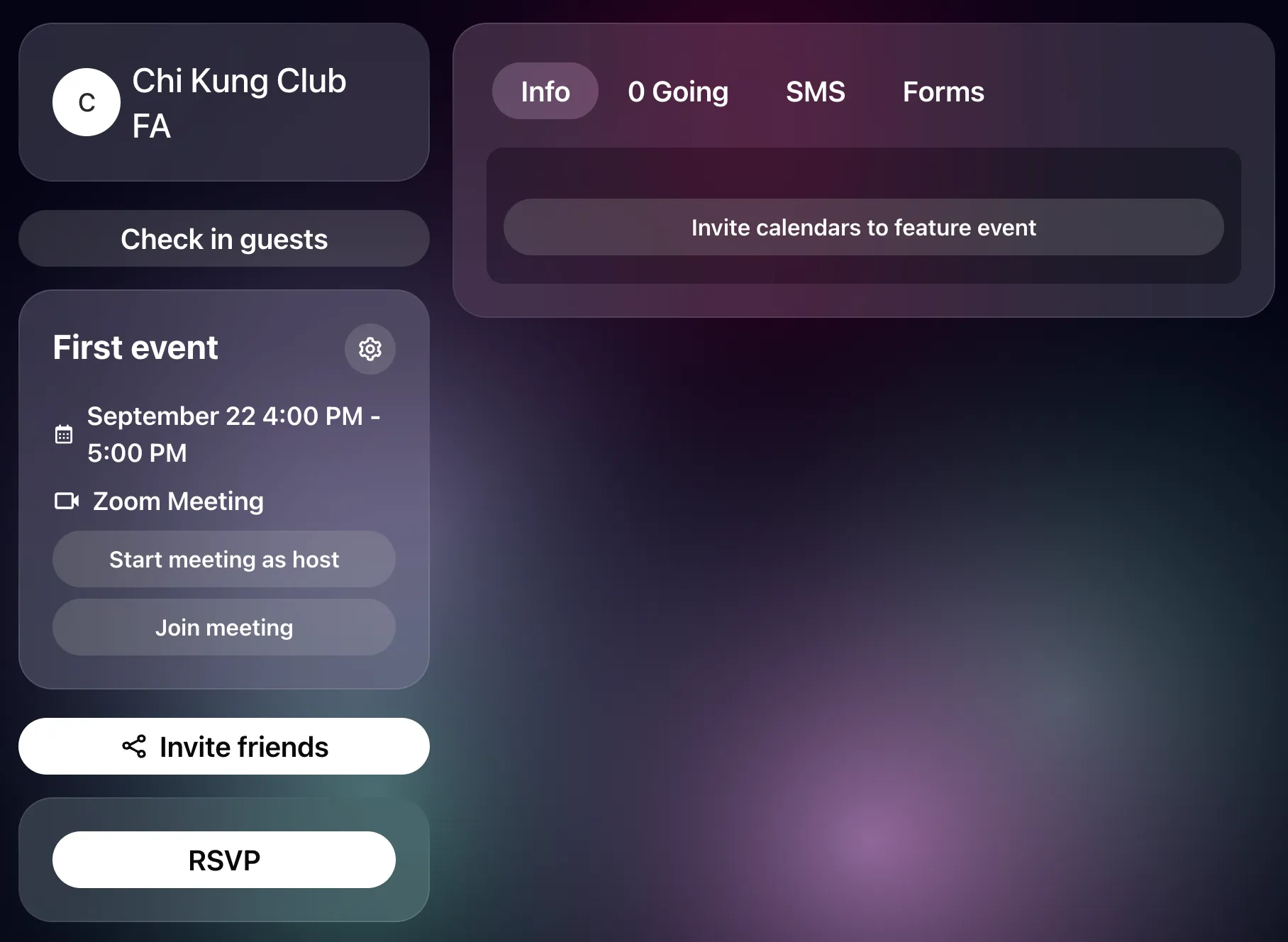
-
Click the button
Start meeting as host. This will launch the Zoom meeting as a host, with host priviledges.
If the meeting is set to record, Zoom starts recording to Zoom Cloud when the host starts it — there is nothing to press. The event page shows Will be recorded beforehand so hosts and attendees know.
Joining the Zoom Meeting as a Guest
Section titled “Joining the Zoom Meeting as a Guest”- You must be the organization Owner or,
- You must have
Check in guestspermission, or - You must have RSVPed or purchased a ticket to the event
-
Visit the page of the event with the zoom meeting
-
Click the button
Join meeting. This will launch the Zoom meeting as a participant.
What the event page shows instead of the buttons
Section titled “What the event page shows instead of the buttons”- Loading Zoom meeting details. — the meeting is being created. Meetings are created the first time an event page is visited, so this appears briefly on a fresh event.
- Meeting has ended — the event’s end time has passed. If the meeting was recorded, the Recording tab appears on the event once the recording arrives; see How recordings get into Feather.
- A notice that the meeting is unavailable, with a Reconnect Zoom link — the organization’s Zoom connection has expired or been removed, so Feather cannot create or reach the meeting. An admin needs to reconnect Zoom.
After the meeting: the recording
Section titled “After the meeting: the recording”If the meeting was recorded, attendees can watch it back from the event’s Recording tab and from the organization’s Videos tab once it has been archived. Who can watch is explained in Who can watch a recording.