Remove Zoom Integration
Prerequisites
Section titled “Prerequisites”-
You must have a Zoom account with
adminrights -
You must be the owner of a Feather Organization or have been given
can manage integrationspermission by the organization owner / admin.
Before you disconnect
Section titled “Before you disconnect”Read the implications below first. In particular:
- Meetings Feather created stay in your Zoom account. Feather does not delete them.
- Any of those meetings that are set to record will still record to that Zoom account if somebody starts one.
- Recordings already saved to Feather stay as long as your consent to keep them stands. Disconnecting does not withdraw it. If you want them gone, use Delete all recordings or untick the consent box first — see Deleting recordings.
- If you have recordings waiting for approval, approve them first. Copying a recording needs the Zoom connection; once it is gone, a recording that was never saved may not be retrievable from Feather.
Removing the Feather Zoom Integration
Section titled “Removing the Feather Zoom Integration”You can remove the Feather Zoom Integration from either Feather or directly from your Zoom account.
Remove from Feather
Section titled “Remove from Feather”-
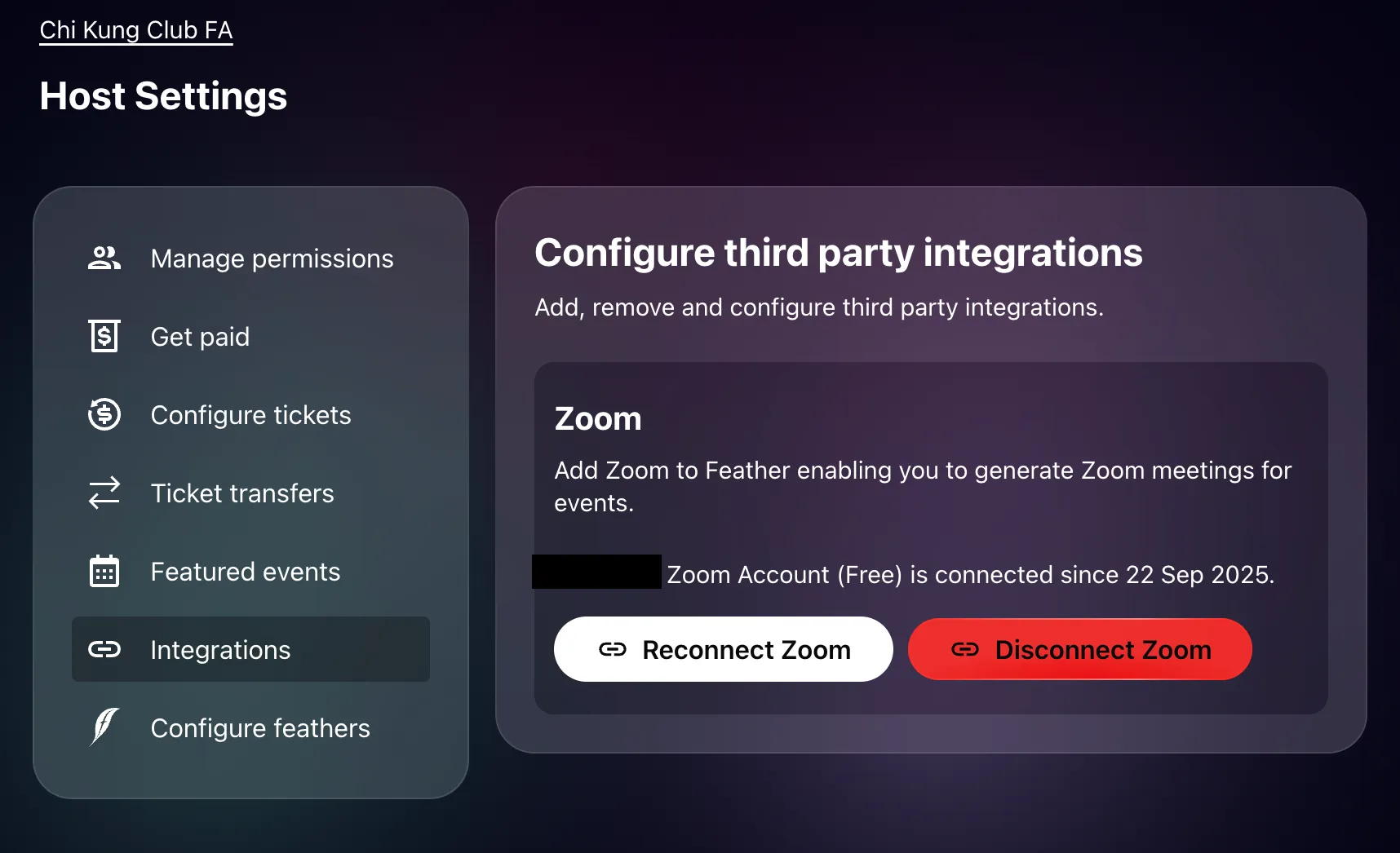
Visit the Host Settings page, Integrations tab:
-
Click
Disconnect Zoom -
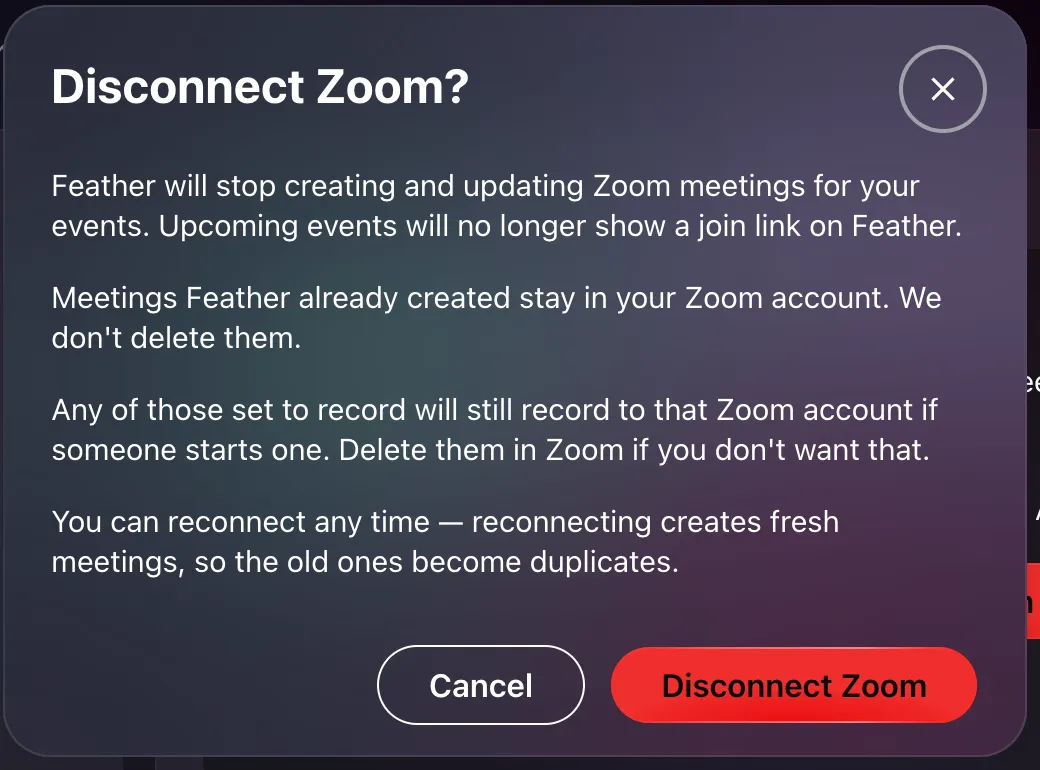
A confirmation titled Disconnect Zoom? explains what will happen:
Feather will stop creating and updating Zoom meetings for your events. Upcoming events will no longer show a join link on Feather.
Meetings Feather already created stay in your Zoom account. We don’t delete them.
Any of those set to record will still record to that Zoom account if someone starts one. Delete them in Zoom if you don’t want that.
You can reconnect any time — reconnecting creates fresh meetings, so the old ones become duplicates.
-
Click
Disconnect Zoomto confirm.
Remove from Zoom App Marketplace
Section titled “Remove from Zoom App Marketplace”-
Log in to your Zoom account and navigate to the Zoom App Marketplace.
-
In the top right corner, click Manage > Added Apps. A list of all apps added by you is displayed.
-
Search for or locate the Feather.rsvp app.
-
Click Remove. A Remove App window will appear.
-
(Optional) Click the drop-down menu to choose the reason for removing this app.
-
Click Remove to confirm the removal of this app.
Implications of Removing the Integration
Section titled “Implications of Removing the Integration”Loss of Zoom Meeting Functionality
Section titled “Loss of Zoom Meeting Functionality”- Existing events with Zoom meetings will lose their join links on Feather
- You will no longer be able to create new Zoom meetings from Feather events
- “Start meeting as host” and “Join meeting” buttons will no longer appear on event pages; instead the event shows a notice that the meeting is unavailable and Zoom needs reconnecting
- Automatic meeting updates will stop working when you edit event details
- A banner — “Zoom is disconnected — new meetings cannot be created.” — appears across your organization’s admin pages until Zoom is reconnected
Meetings in Your Zoom Account
Section titled “Meetings in Your Zoom Account”- Zoom meetings remain in your Zoom account but can no longer be managed from Feather
- You can still access these meetings directly through Zoom
- Meetings that were set to record keep that setting, and will record to your Zoom account if anyone starts them. Delete them in Zoom if you do not want that
- Future updates to events in Feather will not sync to the Zoom meetings
Recordings
Section titled “Recordings”- Recordings that were already saved to Feather stay available to your members for as long as your consent to keep them stands. They are Feather’s own copies and do not depend on the Zoom connection
- If the organization never gave consent, Feather deletes any recordings it holds within ten days of the disconnection
- Recordings that were waiting for approval were never copied. Approve them before disconnecting if you want them
- Zoom will no longer tell Feather about new recordings
You Can Reconnect Anytime
Section titled “You Can Reconnect Anytime”- The integration can be reconnected at any time
- Reconnecting will allow you to create new Zoom meetings
- Reconnecting creates fresh meetings for events that need one, so the meetings left in Zoom from before become duplicates. Previous meeting associations cannot be restored
How User Data is Handled After Removal
Section titled “How User Data is Handled After Removal”When you manually disconnect the Zoom integration using either method above, Feather handles your data as follows:
Zoom Meeting Data Deletion
Section titled “Zoom Meeting Data Deletion”We delete all Zoom meeting data from our database, including:
- Meeting IDs
- Meeting passcodes
- Join URLs
This means Events that were configured to include a Zoom meeting will no longer have access to meeting information. The meetings themselves are not deleted from Zoom.
Account Association Removal
Section titled “Account Association Removal”If disconnecting from Feather:
- We remove only the association between your Zoom account and that specific Feather organization
- Other Feather organizations linked to the same Zoom account remain connected
- This allows you to use one Zoom account with multiple Feather organizations
If disconnecting from Zoom App Marketplace:
- We remove ALL associations between your Zoom account and any Feather organizations
- This disconnects the Zoom account from all Feather hosts it was linked to
Authentication Token Deletion
Section titled “Authentication Token Deletion”- If all associations with your Zoom account are removed, we permanently delete the authentication tokens
- You will need to re-authorize the integration if you reconnect in the future
Data Retained
Section titled “Data Retained”- Recordings you chose to save to Feather are kept while your consent stands. They are your organization’s content, held by Feather on your behalf. You can delete them all, or withdraw consent — which deletes them — at any time from the Zoom Cloud Recording settings; the files leave Feather’s storage within a day
- Without consent on file, recordings are deleted within ten days
- A record that consent was given, withdrawn, or that recordings were deleted — who, when, and how many — is kept for accountability
- No other Zoom-related data is retained after removal
Need Help?
Section titled “Need Help?”If you’re experiencing issues and considering removing the integration, check our troubleshooting guide first. Many common problems can be resolved without disconnecting.