Who can watch a recording
A recording is treated like the class it came from: the people who could have been in the room can watch it back. Everyone else sees what the recording contains and is offered a way in.
The four ways in
Section titled “The four ways in”A signed-in member can watch an event’s recording if any of these is true:
- They had a ticket or RSVP for the event. Any active ticket counts, including a free RSVP and a guest pass someone shared with them. A ticket they transferred away no longer counts for them; it counts for the person who received it.
- They hold an active membership that covers the event. Only subscription memberships count, and the membership must be current — not expired and not frozen. See Class packs below.
- They are an instructor on the event.
- They manage the organization — the owner, or anyone with
Create events and edit event detailsor the broad organization-admin permission.
Someone who is not signed in can never watch. On the public event page and in the video library they see the recording as locked, with a sign-in step inside the access dialog.
Class packs
Section titled “Class packs”Memberships sold as a pack of classes do not unlock recordings, even if the pack would have covered the live class. A pack spends a credit per class, and whether watching a replay should cost a credit is a question Feather deliberately does not answer for you. If you want pack holders to be able to watch, they need a subscription that covers the event.
What a locked recording looks like
Section titled “What a locked recording looks like”A member who cannot watch still sees the event’s Recording tab. It shows a lock, the heading This recording is for members, and the note “You did not have a ticket for this class. A membership that includes it is the way in.”
Beneath that, so nobody is asked to pay sight unseen, it lists what is inside: how many videos, how long in total, and whether there is a searchable transcript.
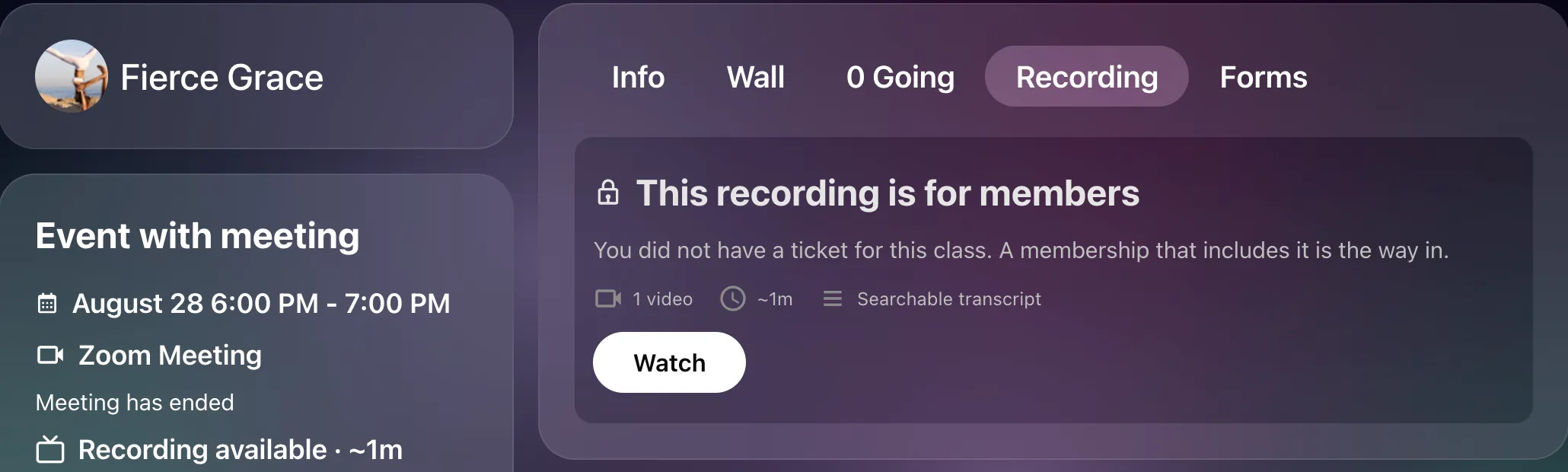
Pressing Watch opens the access dialog, titled Watch “Class name”:
- It lists every subscription membership currently on sale that covers this event, each with a Buy button. Buying enrols the member in the event as well, so the recording follows from the membership.
- If the member used to hold one of those memberships and it has lapsed or is frozen, its button reads Renew instead.
- If nothing on sale covers the event — a one-off workshop with no memberships attached, or one sold only through class packs — the dialog says so: “This recording is only available to people who attended, and no membership currently on sale covers it.”
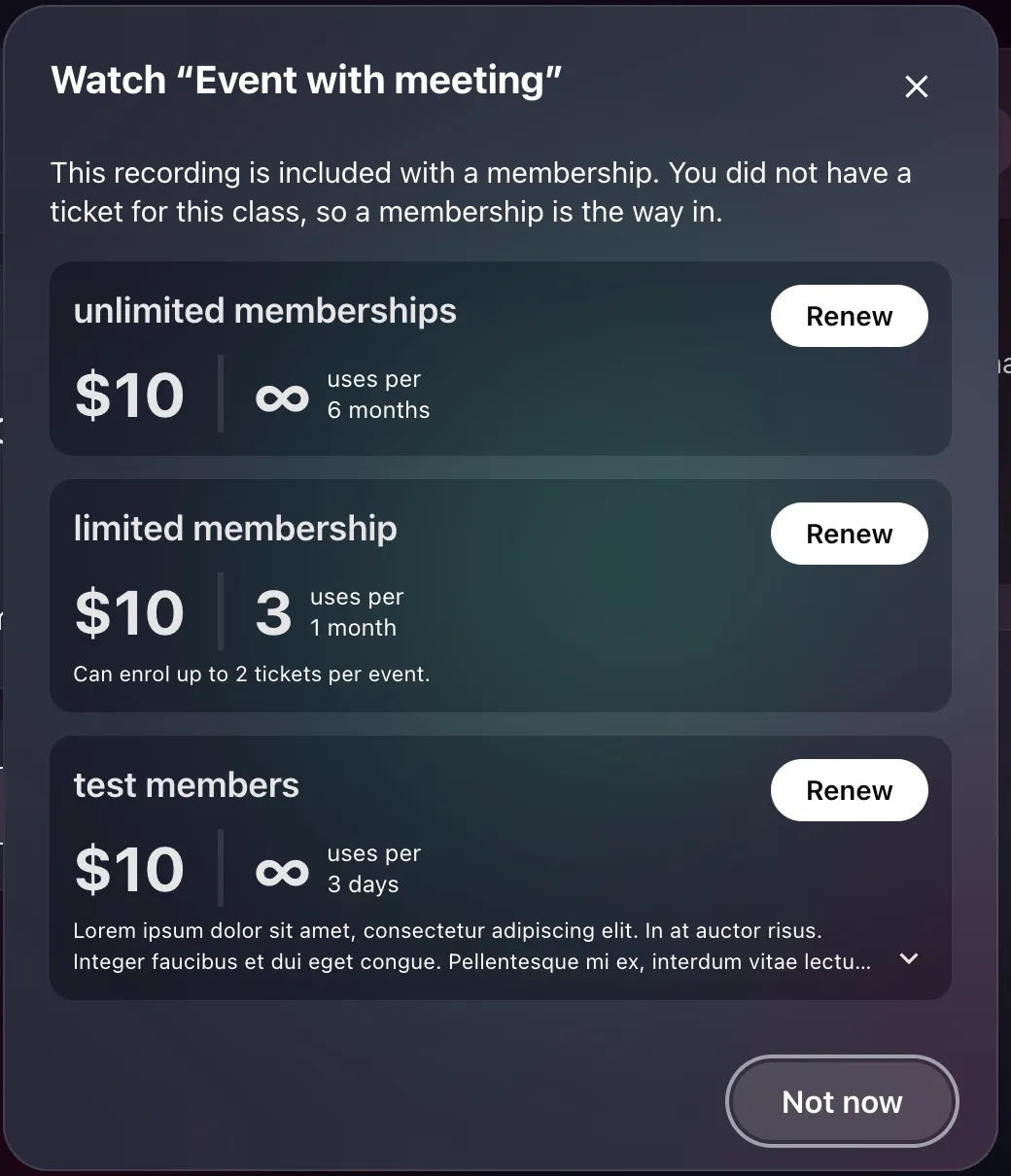
Memberships the member already holds a valid copy of are never offered, so nobody is sold something they are already paying for.
What a watching member gets
Section titled “What a watching member gets”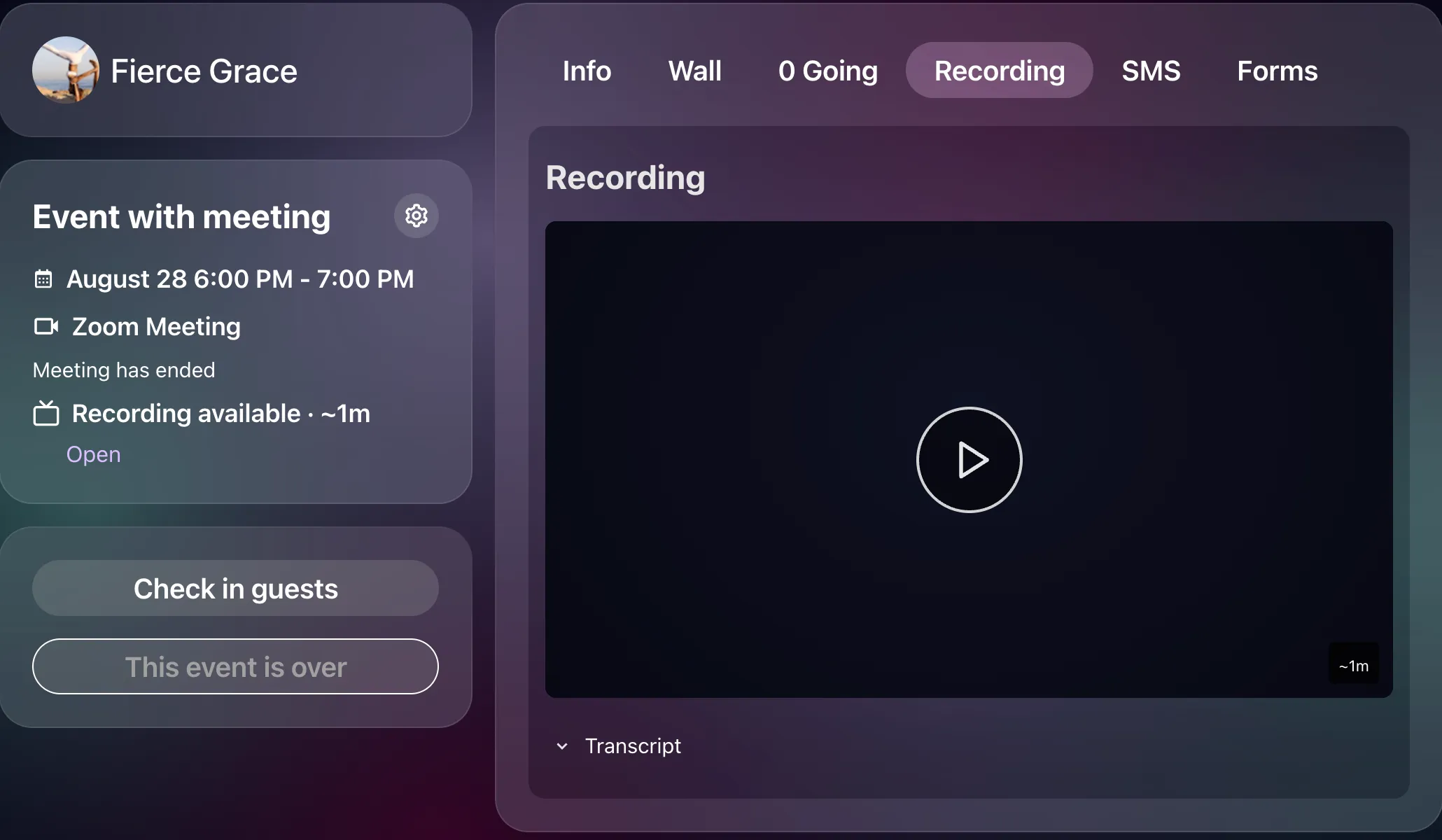
- The video, with play/pause, a scrubber, and 10-second skip buttons.
- Parts, if the host stopped and restarted recording, as a list under the player. Choosing a part plays it.
- The transcript, if Zoom produced one, as a panel that opens with the video. It can be searched, and clicking any paragraph jumps the video to that moment.
- A link that works for six hours once they press play. Feather issues a fresh link each time; a member does not have to do anything about this, but a video that has been paused for many hours may need a fresh press of play.
A member can press play at most 20 times an hour on one recording. Ordinary watching never reaches that; it exists to stop a link being shared around.
Where members find recordings
Section titled “Where members find recordings”- The Recording tab on the event page, which appears as soon as the event has a recording state — including Recording coming soon.
- The Videos tab on your organization page, which lists every class with a watchable recording. See The video library.
- Guests looking for help can read How do I watch a class recording?.