Managing an event's recording
Every event that has, or expects, a Zoom Cloud Recording gets a Recording page in its manage area. It is about this one event only. A weekly class has one of these pages per occurrence; to see every recording in the organization at once, use the admin Video library or the recordings page.
Opening it
Section titled “Opening it”-
Open the event and click the settings dropdown, then
Manage. -
Choose Recording in the event’s manage menu.
You need Create events and edit event details (or to be the owner) to open the page. Acting on the files — approving, discarding, cancelling, re-running — additionally needs can manage integrations.
The page has three tabs.
Manage files
Section titled “Manage files”The same cards and rows as the organization’s recordings page, restricted to this event. Each file shows its type, length, size and start time, and its status:
| Status | Meaning |
|---|---|
| Needs admin approval · still in Zoom — nothing copied yet | Waiting for Save to Feather or Discard. |
| Queued · waiting for a worker | Approved; the copy has not started yet. |
| Archiving · 120 MB of 340 MB — 35% | Copying from Zoom now. |
| Saved · on 29 Aug 06:00 | The copy is complete. |
| Failed · reason | The copy failed. Re-run unless the reason says Zoom no longer has it. |
| Stopped responding · no progress since 06:14 | A transfer that went quiet. Re-run restarts it. |
| Cancelled · by Jane — 29 Aug 06:10 | Someone stopped it. Re-run to try again. |
| Discarded · never downloaded | Decided against. Final. |
When the host stopped and restarted recording, files are grouped under Part 1 of 2 · 18:02:11, Part 2 of 2 · 18:41:50 headings.
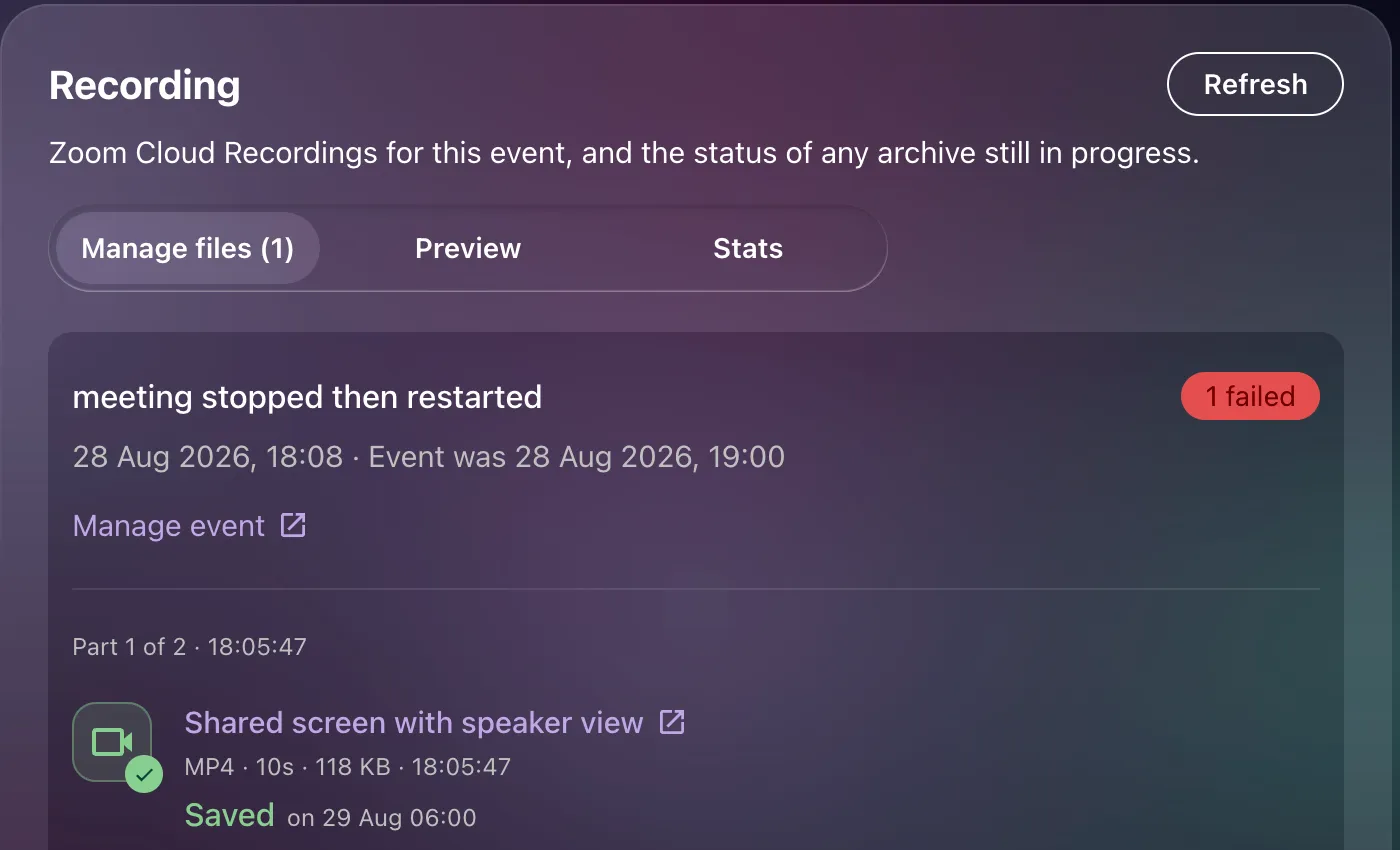
The tab’s label carries a count of anything needing attention — Manage files (2) — so it is visible even while you are on another tab.
If the event has no files yet, the tab explains why:
- This event will be recorded to Zoom Cloud. Its files will appear here once the meeting has ended. — the event is upcoming.
- The recording has not arrived from Zoom yet. It usually appears within a few hours of the meeting ending. — the event has ended and Zoom is still processing.
- No recordings for this event. — the event was not set to record.
Preview
Section titled “Preview”What a member sees when they open the event’s Recording tab — the same player and transcript — plus the technical detail a member has nothing to do with.
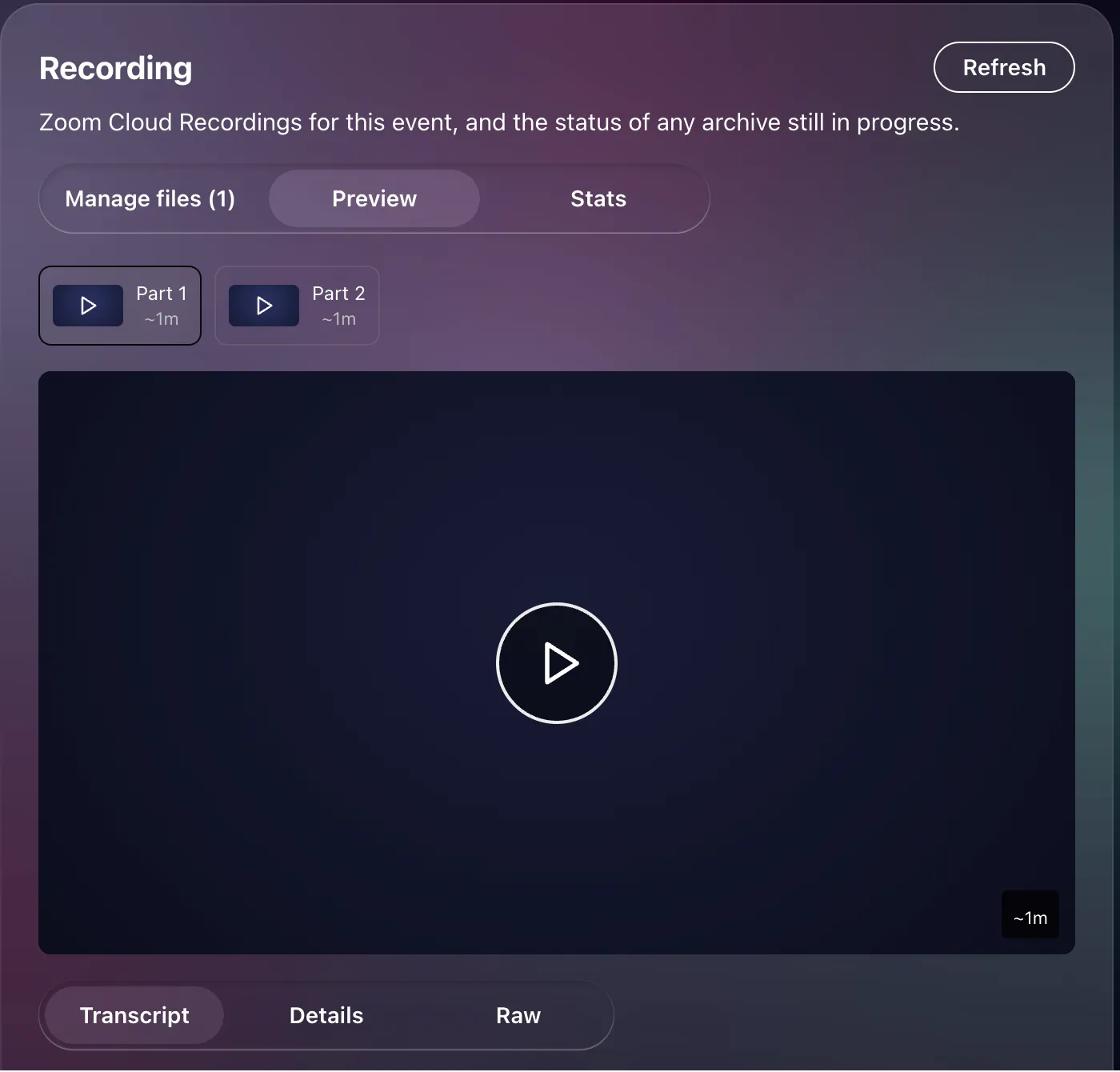
- If the recording has more than one part, part buttons appear above the player. Pick one to play it.
- Transcript shows the transcript as clickable paragraphs, with a search box. Clicking a paragraph seeks the video to that moment.
- Details lists what the file captured, its format, size and length, when Zoom recorded it, its status, how many archive attempts it took, any error, and the Zoom meeting identifier. There is an Open in Zoom link to Zoom’s player.
- Raw shows the transcript file exactly as Zoom delivered it — useful when a transcript looks wrong and you want to know whether the file or the display is at fault.
A recording that is still Needs admin approval cannot be previewed, because its bytes are not in Feather yet. The tab says so and offers Watch it in Zoom instead.
Who has watched the recording, once anyone has. Until then the tab reads “Nobody has watched this recording yet. Numbers appear here the first time someone presses play.”
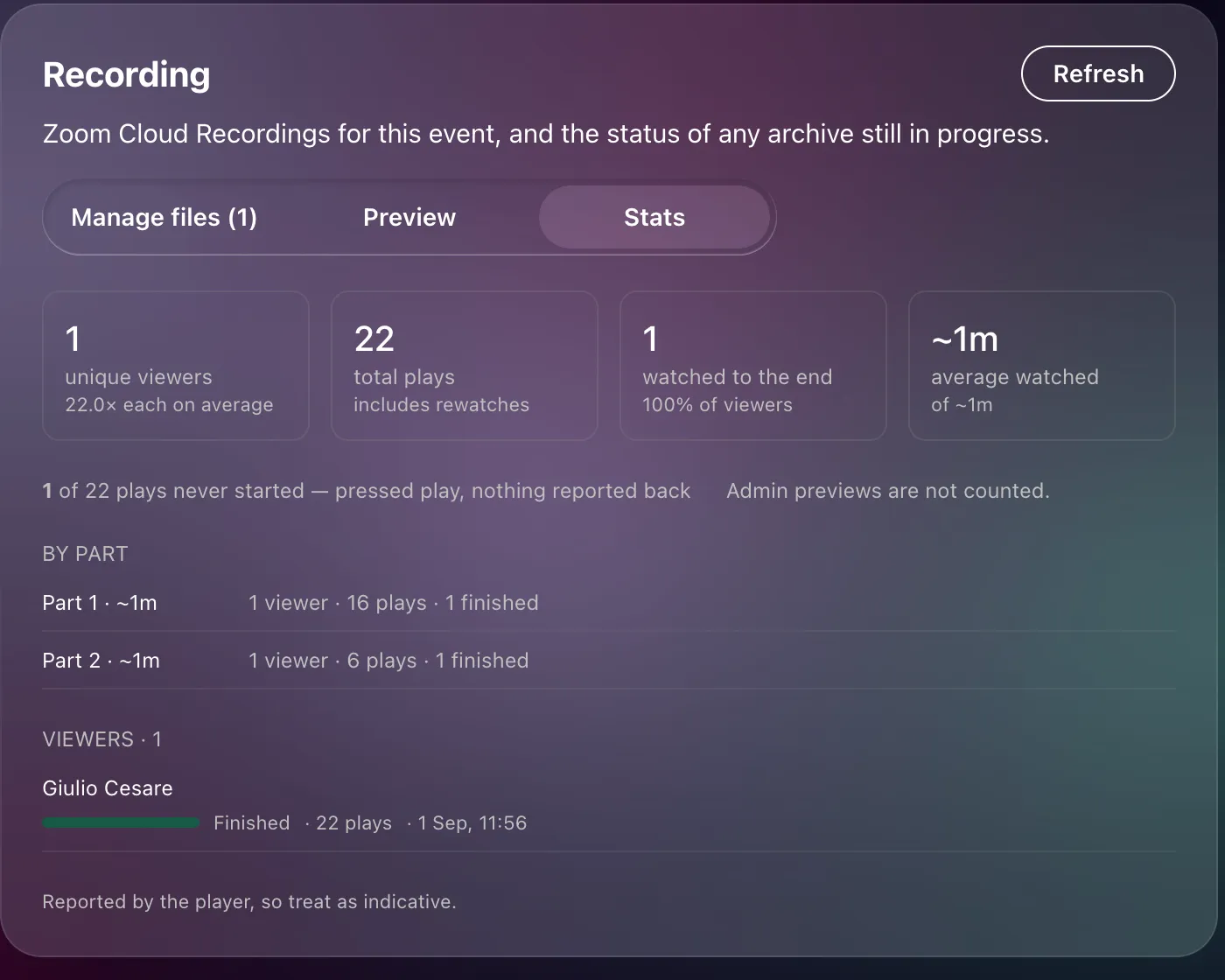
Four headline figures, each with the context that gives it meaning:
- Unique viewers — people, with the average number of plays per person when it is above one.
- Total plays — presses of play, including rewatches. One person watching three times is one viewer and three plays.
- Watched to the end — how many viewers reached the end, as a percentage of viewers.
- Average watched — the mean time watched, against the recording’s length.
Below that, a line for plays that never started — the viewer pressed play but the player reported nothing back, which usually means they changed their mind before it loaded — with the number that reported an actual playback error.
If the recording has parts, a By part breakdown shows viewers, plays and completions for each part; whether people came back for part two is usually the most interesting number on the page.
Finally, a Viewers list: each person’s name, how far they got (the bar is the furthest point they reached; the text beside it is the time they actually watched — a gap between the two means they skipped or rewatched), their outcome (Finished, 12m of 45m, Didn’t start, Playback failed), their number of plays, and when they last pressed play.