Remove Zoom meetings
Prerequisites
Section titled “Prerequisites”- Your organization owner / admin must have connected zoom to the Feather organization.
- You must be the organization owner or have the permission
Create events and edit event detailsto be able to create an Event with a Zoom meeting. - You must have a Feather Event created with a Zoom meeting.
Edit the Feather Event with Zoom Meeting
Section titled “Edit the Feather Event with Zoom Meeting”-
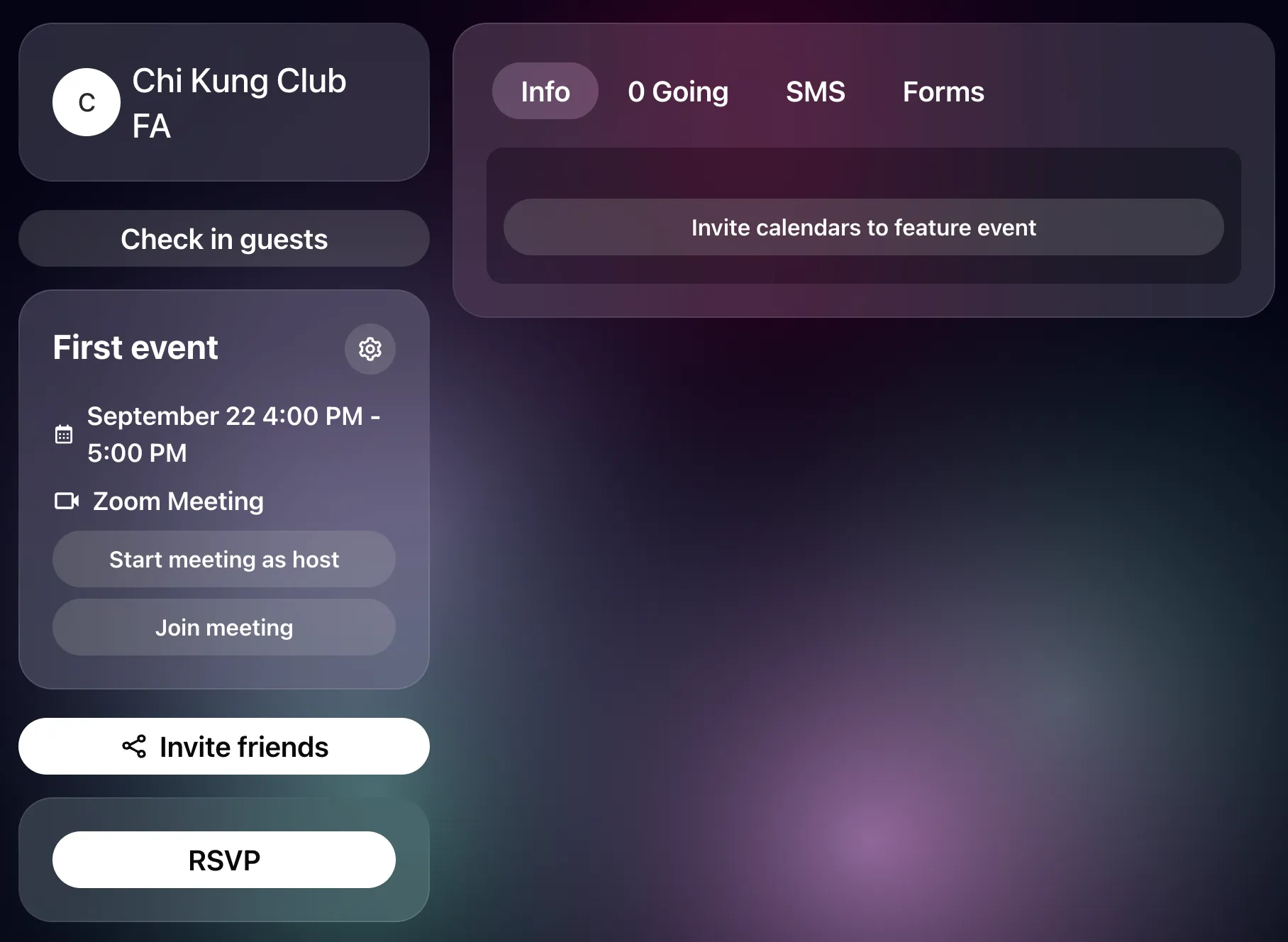
Visit the page of the Feather Event with the zoom meeting
-
Click the setting dropdown menu.
-
Choose the option
Edit event(if you want to update just this event). -
Click the trash can icon next to
Zoom meeting created by Feather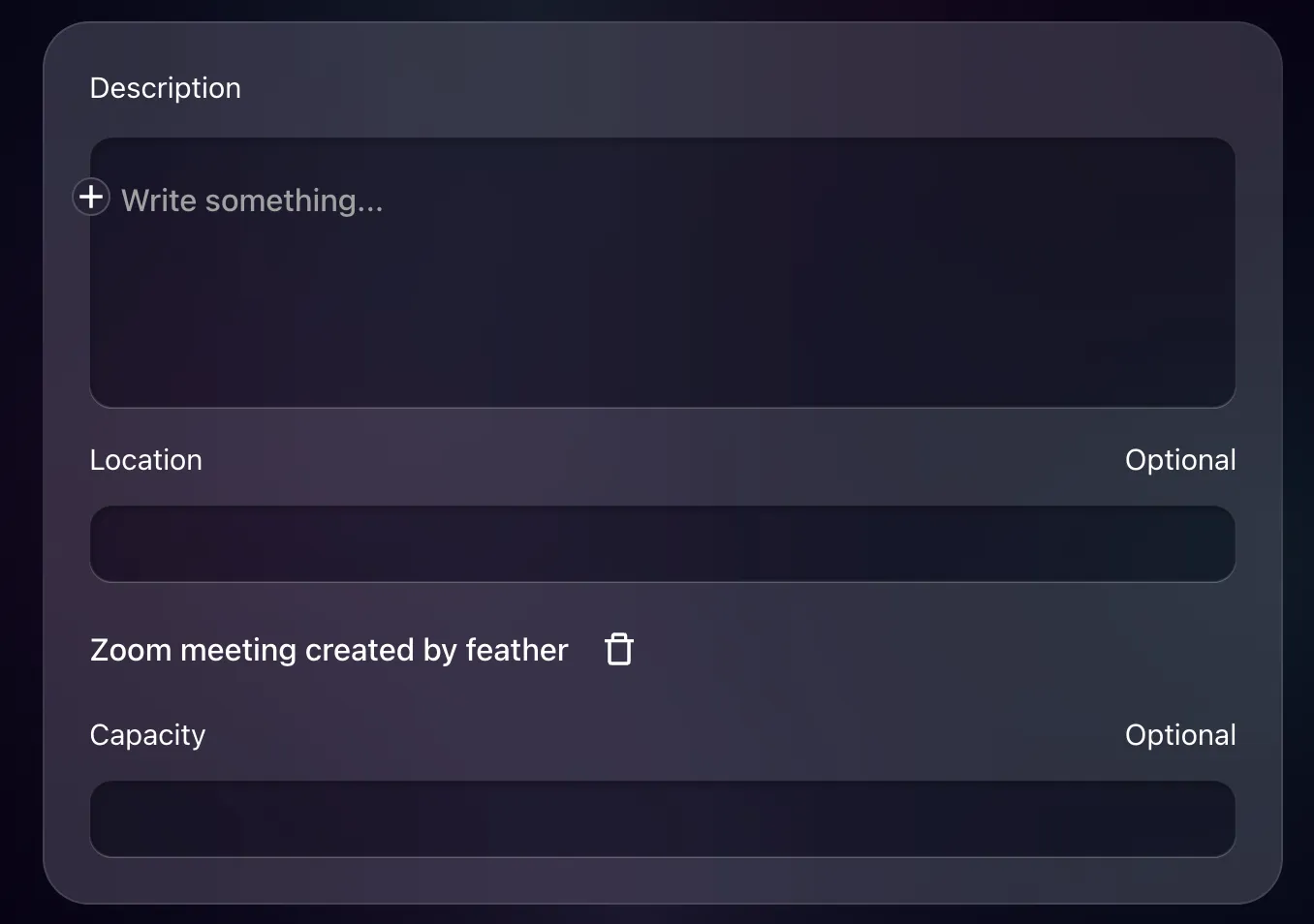
-
Click
Save -
The zoom meeting is going to be deleted (this may take a few seconds to reflect on Zoom’s platform).
What is and is not deleted
Section titled “What is and is not deleted”- The meeting is deleted from your Zoom account.
- A recording of that meeting that has already been saved to Feather is kept. Removing the meeting does not remove the recording, and members can still watch it.
- A recording still in Zoom is unaffected by Feather; it stays under Zoom’s own retention rules.
Adding / removing Zoom Meetings
Section titled “Adding / removing Zoom Meetings”When editing a Feather event, you can remove that the event includes a Zoom meeting, resulting in the meeting being deleted.
You can also add the virtual meeting again, if not present, which will create the Zoom meeting once the event is saved.
Cancelling or deleting the event
Section titled “Cancelling or deleting the event”Cancelling or deleting an event that has a Zoom meeting deletes the meeting from Zoom as well.
Updates to Recurring events
Section titled “Updates to Recurring events”When you update the whole recurring event series, you may perform the following changes:
- Change the date when recurring events are run (ie. from a Monday to a Tuesday, or to include a new day, or remove a whole day). This will result on Feather deleting events that are no longer meant to happen and creating new ones that are meant to happen
- Change any of the title, description, start / end times, enable/disable Zoom Meetings
Since the changes above may apply to a large number of Events, Feather does the following:
- any Zoom meeting that must be deleted, or updated is queued for an update
- clearing the queue roughly takes 4 seconds per operation
This means that it may take a short amount of time before you see the meetings being updated / deleted on Zoom’s platform.
Any new zoom meeting will be generated only when the Event page is visited for the first time on Feather, if the Zoom meeting had not been previously created for that Event.