Troubleshooting recordings
Start by finding out where the recording is. How recordings get into Feather describes the path; most problems are one step on it not happening.
The meeting was not recorded at all
Section titled “The meeting was not recorded at all”The event page said “Will be recorded”, but Zoom has no recording.
Feather asks Zoom to record; Zoom decides whether it can. Check the top of the Zoom Cloud Recording settings panel. If it reads “Recording is on, but your Zoom plan doesn’t include Zoom Cloud Recording, so nothing is being recorded”, or a banner across your admin pages says the same, one of these is true:
- The connected Zoom account is on a Basic (free) plan. Cloud Recording needs a Licensed seat.
- Cloud Recording is switched off in the Zoom account settings.
- Cloud Recording is locked off by your Zoom account owner.
Fix it in Zoom, then future meetings will record. Meetings that already ran without recording cannot be recovered.
Recording is greyed out, with “Tick the box above to turn recording on.” Nobody has ticked Keep our Zoom recordings in Feather in the Zoom Cloud Recording settings. Until someone with can manage integrations does, nothing can be set to record, and a recording that arrives anyway is not stored.
The event or series was set to “Don’t record”. Open the event editor’s virtual meeting settings and check the Cloud Recording control. An event’s own setting overrides the series, which overrides the organization default.
The setting was changed after the meeting was created. A Zoom meeting takes its recording setting when it is created, which is the first time the event page is visited. Changing the organization default later only reaches existing meetings if you chose Update N events in the prompt. Editing the event itself always updates its meeting.
The host started a different meeting. Only meetings Feather created for the event are recorded on the event’s behalf. A meeting started from the host’s own Zoom app, or a personal meeting room, is unrelated.
The recording has not arrived
Section titled “The recording has not arrived”The event page says “Recording coming soon”.
Zoom usually finishes processing within minutes; a long meeting can take a few hours. Wait, then press Refresh on the recordings page.
If it has been longer than that:
- Check in your Zoom account whether the recording exists. If Zoom has no recording, see the section above.
- If Zoom has the recording, check the organization’s recordings page with the Needs admin approval filter. In Manual mode the recording is waiting for you, and the event page keeps saying “coming soon” until it is approved and archived.
- If the recording is nowhere in Feather, the meeting’s times may not have matched the event closely enough. Recordings that do not line up with any event are still held for review, so look for a card headed Unmatched recording or carrying a “does not line up” note.
Consent was withdrawn. Unticking Keep our Zoom recordings in Feather deletes every recording the organization held and turns recording off. Recordings that arrive afterwards are not stored until consent is given again.
“Recording coming soon” became “Recording unavailable”. Two days passed after the event without a recording arriving. If one arrives later it still comes through; otherwise the meeting was not recorded.
The recording is held and I cannot approve it
Section titled “The recording is held and I cannot approve it”There is no Save to Feather button. Approving needs the can manage integrations permission or the organization owner. Anyone else can see the card but not act on it.
Save to Feather is greyed out and the card says Feather no longer knows which event it belonged to. The event was deleted after the meeting was created. The recording can be watched in Zoom from the row’s link, or discarded.
Archiving failed
Section titled “Archiving failed”Failed — Zoom no longer has the recording. Zoom’s retention removed it before the copy completed, or it was deleted in Zoom. There is no Re-run because there is nothing left to copy. Approve recordings sooner, or switch to Automatic mode.
Failed — missing permission. The Zoom connection does not carry the scope Feather needs to read recordings. Reconnect Zoom; the next recording will work. This one cannot be re-run.
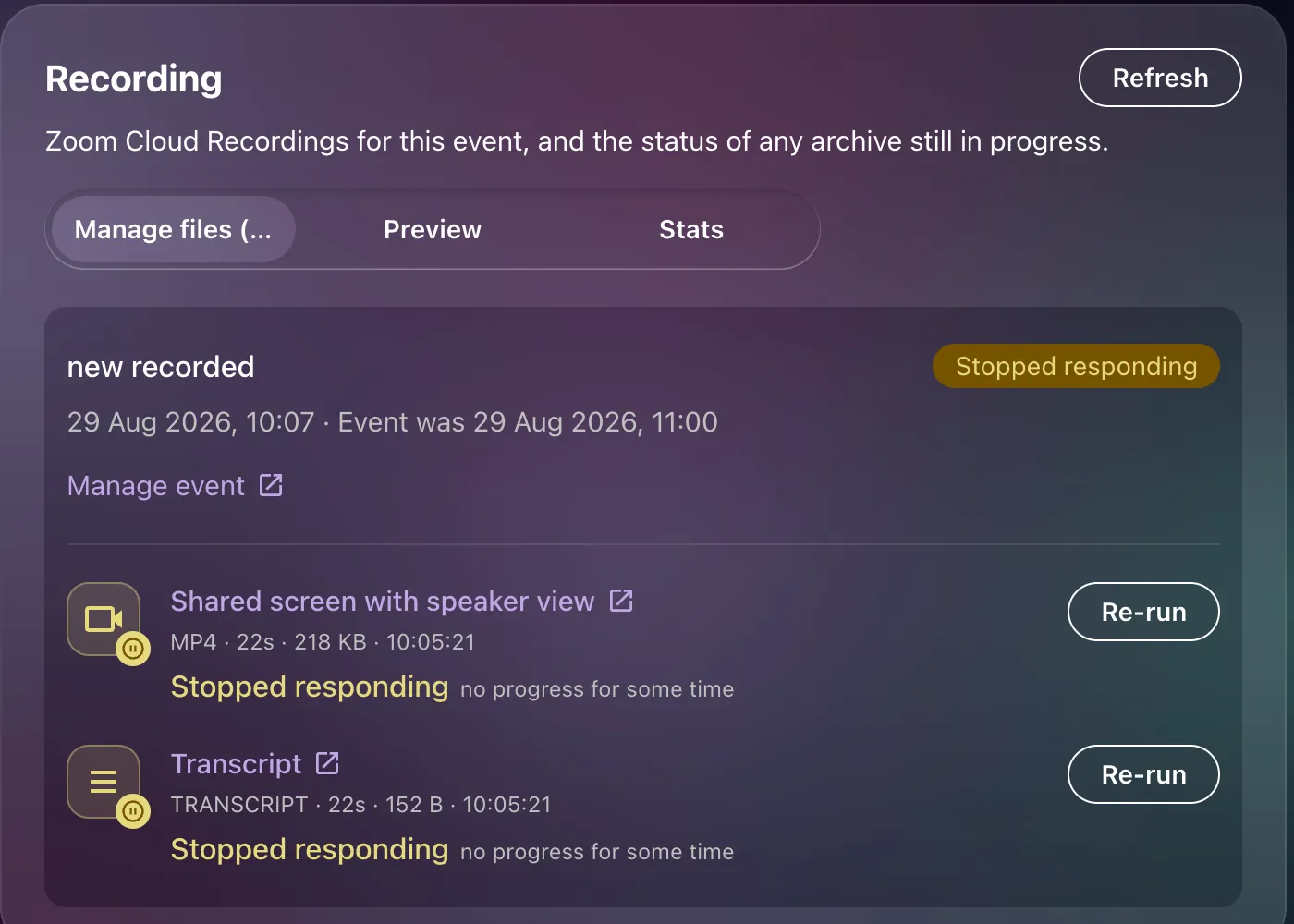
Failed for any other reason, or Stopped responding. Press Re-run. A transfer that stops responding is usually a temporary problem on the way from Zoom; re-running starts it again from the beginning.
Cancelled. Someone pressed Cancel while it was archiving. The row says who. Re-run restarts it.
The recording is saved but members cannot watch
Section titled “The recording is saved but members cannot watch”The event page shows “Recording available” but a member sees a lock. The member is not entitled. See Who can watch a recording — the usual reasons are a class pack rather than a subscription, an expired or frozen membership, or a ticket that was transferred to someone else.
The member is entitled but the player says “This recording could not be played. Please try again.” The link Feather issued could not be played. Ask them to reload the page and press play again, which issues a fresh link. If it keeps failing, note the time and contact support: the failure is recorded against the recording, and it can be traced.
Only one part shows, but the meeting was recorded twice. Check the Manage files tab: the second run may have failed to archive, or may still be waiting for approval. The event says “available” as soon as any part is watchable.
There is no transcript. Zoom only produces one when Audio transcript is on in your Zoom recording settings. A recording made before you switched it on will never gain one.