Add Zoom Integration
Prerequisites
Section titled “Prerequisites”-
You must have a Zoom account with
adminrights -
You must be the owner of a Feather Organization or have been given
can manage integrationspermission by the organization owner / admin.
Add Zoom to an Organization Host
Section titled “Add Zoom to an Organization Host”-
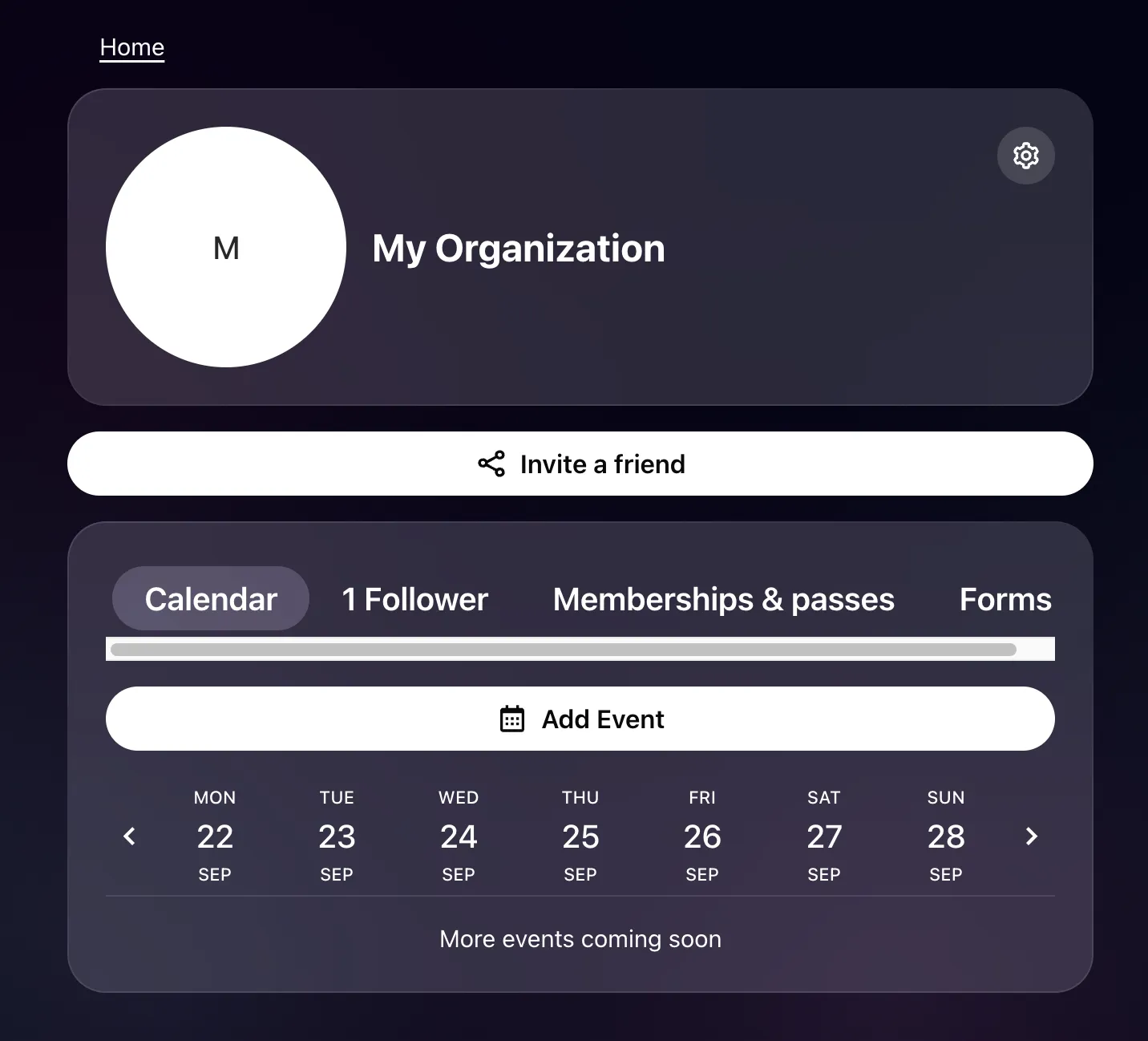
Visit the organization page
-
Click the settings dropdown and edit Host settings.
-
Go to the
Integrationstab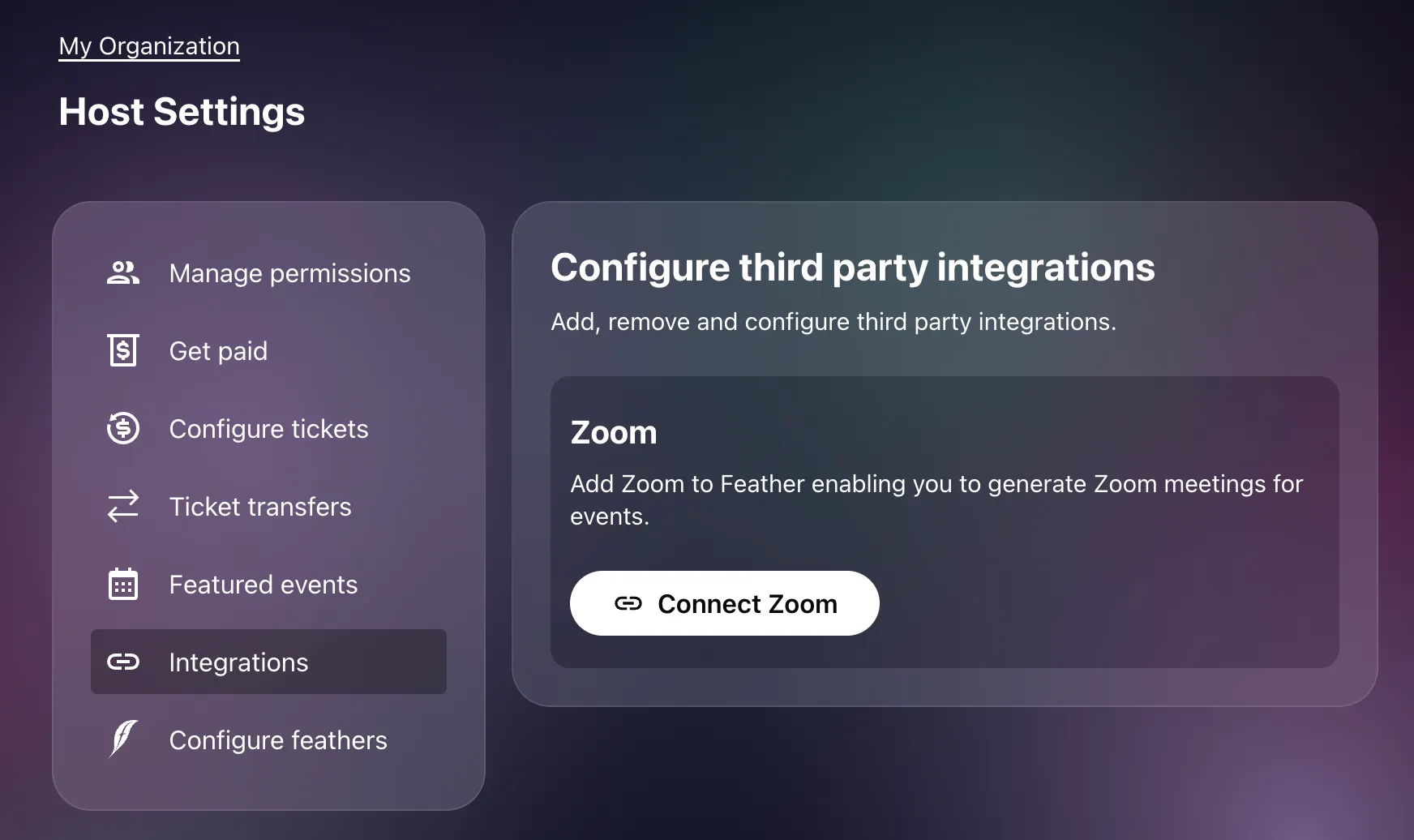
-
Now click the
Connect ZoomorReconnect Zoombutton. This will initiate the connection flow by opening a popup window (in Desktop) or a new tab. -
Login and authorize the Feather Zoom Marketplace App
-
When the authorization is successful, you get redirected back to Feather, which will then complete the link.
-
You can now use Zoom features in Feather
Add Zoom for Personal Hosts
Section titled “Add Zoom for Personal Hosts”Each Feather user can Host events on their personal calendar.
To access the Integration Settings page on the personal host page, you must:
-
Click your user icon in the app toolbar
-
In the dropdown menu, choose:
Profilebutton -
On your profile page, click
Host settingsbutton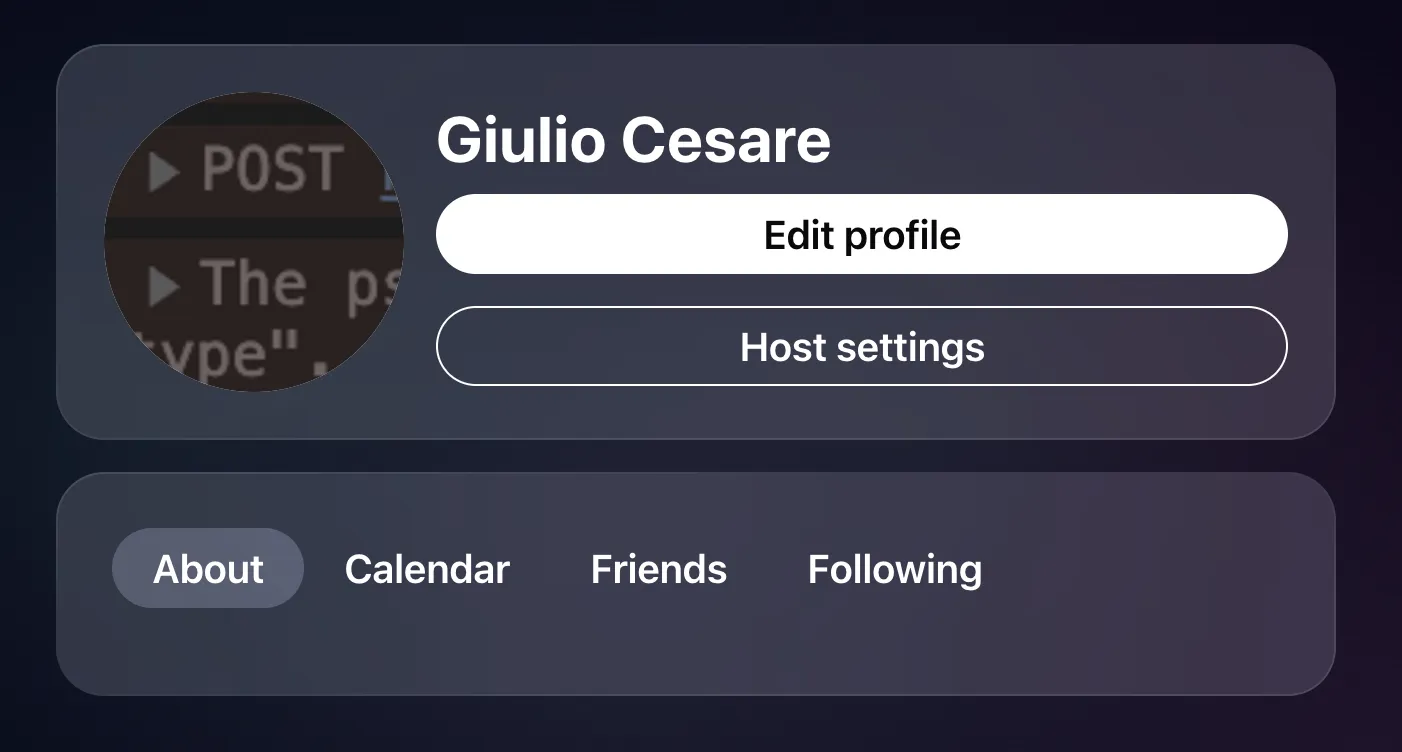
-
Go to the
Integrationstab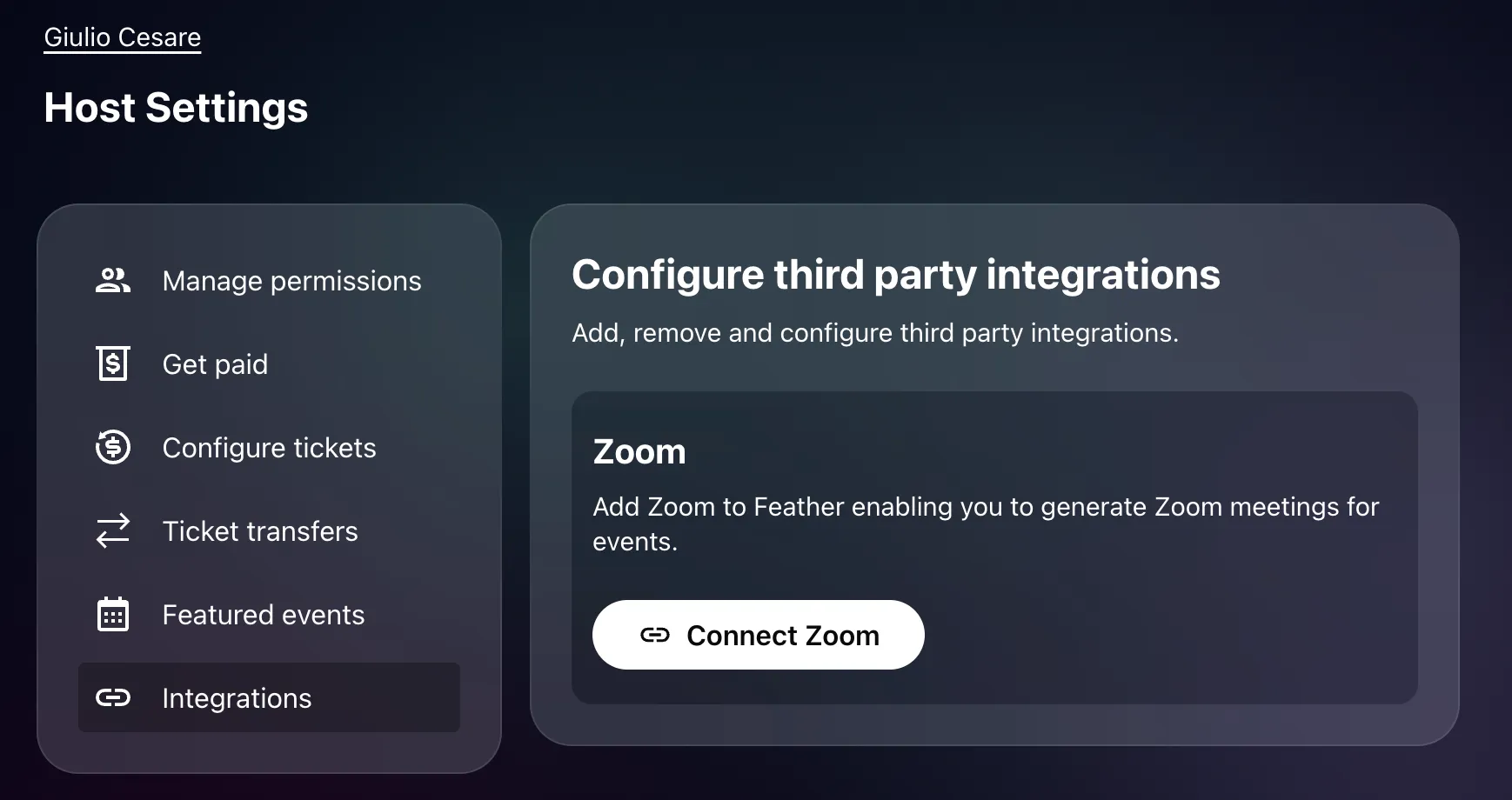
-
Now click the
Connect ZoomorReconnect Zoombutton. This will initiate the connection flow by opening a popup window (in Desktop) or a new tab. -
Login and authorize the Feather Zoom Marketplace App
-
When the authorization is successful, you get redirected back to Feather, which will then complete the link.
-
You can now use Zoom features in Feather
Linking Zoom account to multiple Feather Hosts
Section titled “Linking Zoom account to multiple Feather Hosts”It is possible to link your Zoom account to multiple Feather hosts.
Troubleshooting
Section titled “Troubleshooting”Having issues connecting Zoom? Check out our troubleshooting guide for common problems and solutions.