Remove Zoom Integration
Prerequisites
Section titled “Prerequisites”-
You must have a Zoom account with
adminrights -
You must be the owner of a Feather Organization or have been given
can manage integrationspermission by the organization owner / admin.
Removing the Feather Zoom Integration
Section titled “Removing the Feather Zoom Integration”You can remove the Feather Zoom Integration from either Feather or directly from your Zoom account.
Remove from Feather
Section titled “Remove from Feather”-
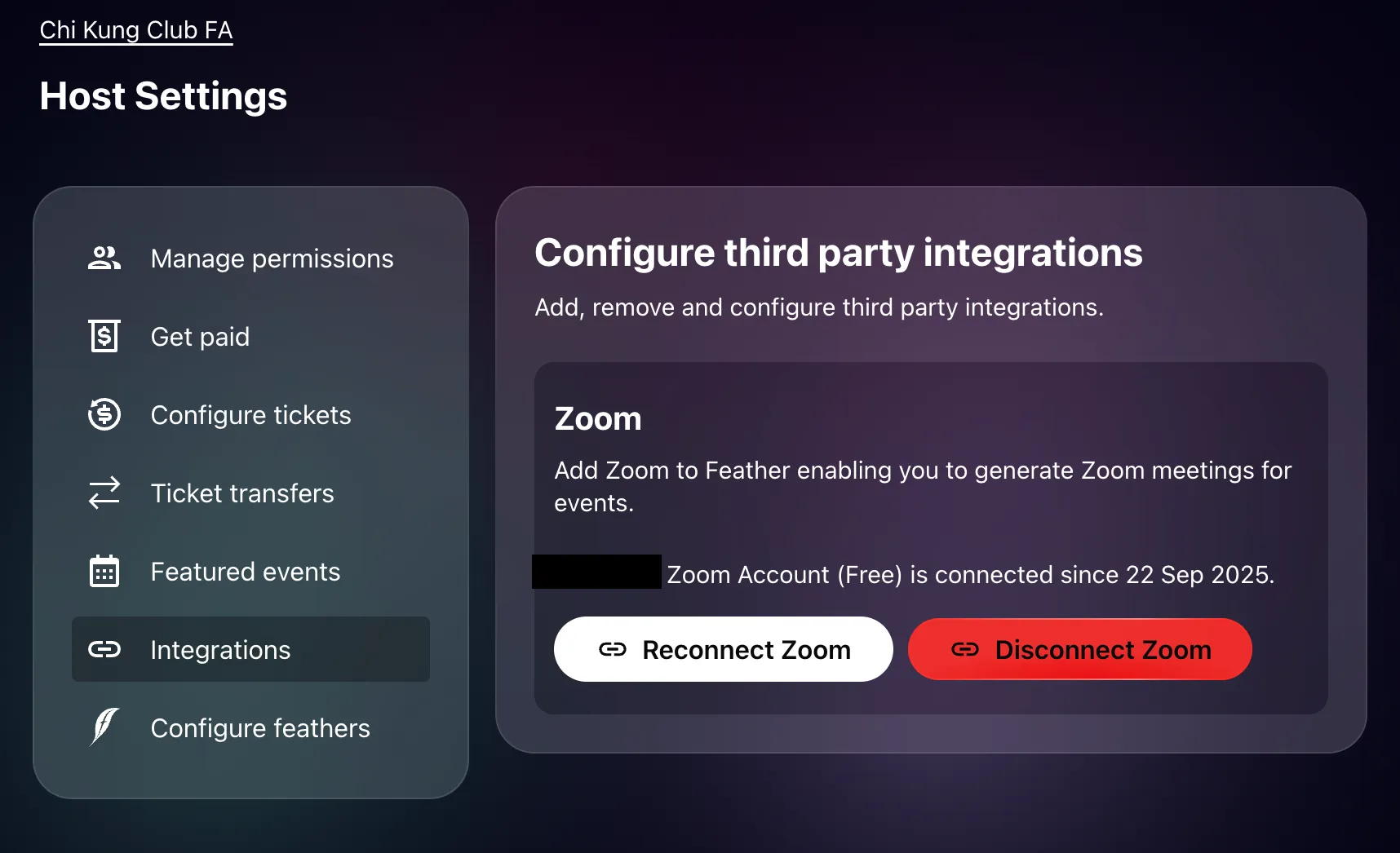
Visit the Host Settings page, Integrations tab:
-
Click
Disconnect Zoom -
Confirm that you want to disconnect Zoom in the pop-up.
Remove from Zoom App Marketplace
Section titled “Remove from Zoom App Marketplace”-
Log in to your Zoom account and navigate to the Zoom App Marketplace.
-
In the top right corner, click Manage > Added Apps. A list of all apps added by you is displayed.
-
Search for or locate the Feather.rsvp app.
-
Click Remove. A Remove App window will appear.
-
(Optional) Click the drop-down menu to choose the reason for removing this app.
-
Click Remove to confirm the removal of this app.
Implications of Removing the Integration
Section titled “Implications of Removing the Integration”Before removing the Feather Zoom Integration, be aware of the following impacts:
Loss of Zoom Meeting Functionality
Section titled “Loss of Zoom Meeting Functionality”- Existing events with Zoom meetings will lose access to their meeting URLs and join links
- You will no longer be able to create new Zoom meetings from Feather events
- “Start meeting as host” and “Join meeting” buttons will no longer work on event pages
- Automatic meeting updates will stop working when you edit event details
Meetings in Your Zoom Account
Section titled “Meetings in Your Zoom Account”- Zoom meetings remain in your Zoom account but can no longer be managed from Feather
- You can still access these meetings directly through Zoom
- Future updates to events in Feather will not sync to the Zoom meetings
You Can Reconnect Anytime
Section titled “You Can Reconnect Anytime”- The integration can be reconnected at any time
- Reconnecting will allow you to create new Zoom meetings
- Previous meeting associations cannot be restored after disconnection
How User Data is Handled After Removal
Section titled “How User Data is Handled After Removal”When you manually disconnect the Zoom integration using either method above, Feather handles your data as follows:
Zoom Meeting Data Deletion
Section titled “Zoom Meeting Data Deletion”We delete all Zoom meeting data from our database, including:
- Meeting IDs
- Meeting passcodes
- Join URLs
This means Events that were configured to include a Zoom meeting will no longer have access to meeting information.
Account Association Removal
Section titled “Account Association Removal”If disconnecting from Feather:
- We remove only the association between your Zoom account and that specific Feather organization
- Other Feather organizations linked to the same Zoom account remain connected
- This allows you to use one Zoom account with multiple Feather organizations
If disconnecting from Zoom App Marketplace:
- We remove ALL associations between your Zoom account and any Feather organizations
- This disconnects the Zoom account from all Feather hosts it was linked to
Authentication Token Deletion
Section titled “Authentication Token Deletion”- If all associations with your Zoom account are removed, we permanently delete the authentication tokens
- You will need to re-authorize the integration if you reconnect in the future
Data Retained
Section titled “Data Retained”- No Zoom-related data is retained after removal
Need Help?
Section titled “Need Help?”If you’re experiencing issues and considering removing the integration, check our troubleshooting guide first. Many common problems can be resolved without disconnecting.